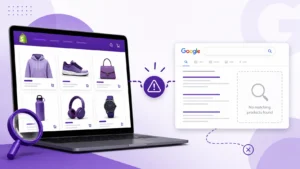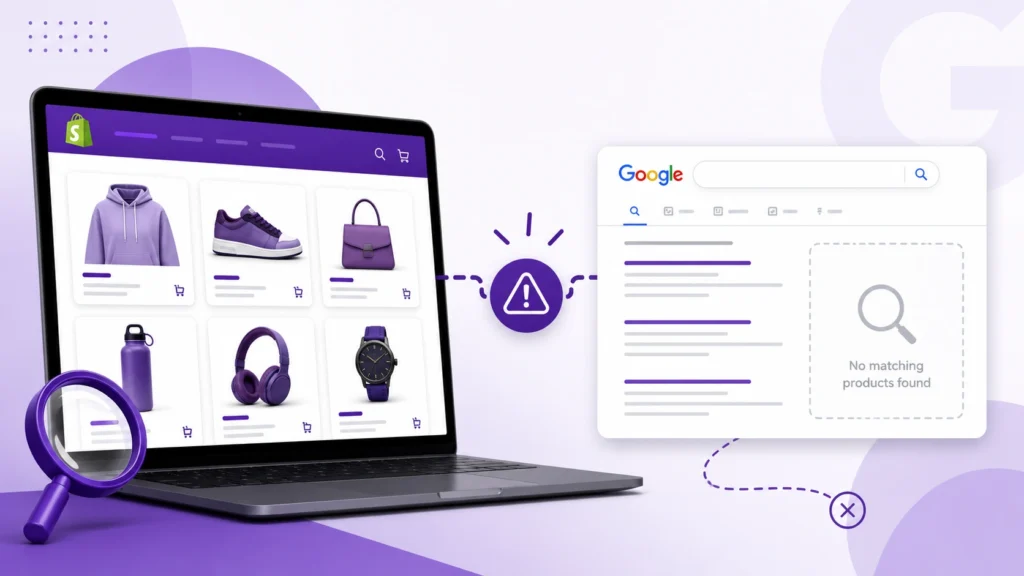
You published your Shopify products, but when you search for them on Google, nothing appears.
That does not necessarily mean your Shopify SEO is broken.
A product can be missing from Google for several different reasons. Google may not have discovered the URL yet, the page may be blocked from indexing, Shopify may be treating the product as unlisted, Google may have selected another URL as canonical, or the product may already be indexed but simply not ranking for the searches you’re using.
The first step is therefore finding out which problem you actually have.
Why Are My Shopify Products Not Showing on Google?
The most common causes are:
- The product isn’t published to the Online Store.
- The product is unlisted or hidden from search engines.
- Your store or product is too new to have been crawled.
- Google hasn’t discovered the product URL yet.
- The product has an indexing or crawling issue.
- A canonical URL points Google toward another page.
- The product page contains thin, duplicated, or low-value content.
- The product is indexed but doesn’t rank for the searches you’re making.
- Product structured data has implementation problems.
Shopify automatically creates a sitemap.xml containing links to products, collections, pages, blog posts, and other resources. However, a sitemap is a discovery aid, not a guarantee that every URL will be indexed. Google decides which pages it crawls and indexes.
1. Check Whether Google Has Indexed the Product
Before changing your product title, description, images, or theme, check whether the product is actually in Google’s index.
You can start with a simple Google search:
site:yourstore.com/products/product-name
Replace the domain and product path with your actual product URL.
If the product appears, Google has indexed the page. Your problem may be ranking or search relevance, rather than indexing.
If it doesn’t appear, use Google Search Console for a more reliable diagnosis.
Use URL Inspection in Google Search Console
Open Google Search Console and inspect the exact product URL.
Look for information about:
- Whether the URL is indexed
- Whether Google can crawl the page
- The selected canonical URL
- Any indexing problems
- The last crawl
- Whether the page is available to Google
This is much more useful than repeatedly searching the product name in Google.
If you recently published or substantially changed the product, you can also request a crawl through URL Inspection. Google notes that requesting a crawl does not guarantee immediate inclusion in Search.

2. Make Sure the Product Is Published to the Online Store
A product can exist inside Shopify without being publicly available through the Online Store sales channel.
Shopify states that products need to be published to the Online Store to be returned in storefront search.
Check the product in Shopify and confirm:
- The product status is active.
- The product is published to the Online Store.
- The product can be opened publicly without logging in.
- The product URL works in an incognito/private browser window.
If the product isn’t publicly accessible, Google cannot treat it like a normal publicly available product page.
3. Check Whether the Product Is Unlisted
This is an easy setting to overlook.
Shopify’s Unlisted product status is specifically designed for products that should be accessible through a direct URL without being discoverable through search.
Unlisted products are hidden from internet search and removed from the Shopify sitemap. Shopify also adds noindex and nofollow directives to unlisted product pages.
If you want the product to appear in Google, check that it isn’t intentionally unlisted.
Also check seo.hidden
Shopify supports an seo.hidden metafield that can hide a product from search engines and sitemaps when its value is set to 1.
If a product unexpectedly disappeared from Google, this is worth checking, particularly if an SEO app, developer, or previous theme customization changed the product’s metafields.
4. Your Product May Simply Be New
New products do not necessarily appear in Google immediately.
Shopify automatically updates its sitemap when products and other store content are added or changed, but crawling and indexing still take time. Shopify explicitly notes that Google does not guarantee how long this process will take.
Google likewise says crawling can take anywhere from several days to several weeks depending on the situation.
So if you published a product recently, don’t immediately assume something is wrong.
Instead:
- Confirm that the product is publicly accessible.
- Check that it isn’t hidden or unlisted.
- Inspect the URL in Search Console.
- Make sure your sitemap is submitted.
- Give Google time to crawl the page.



5. Check Your Shopify Sitemap
Shopify automatically generates a sitemap at:
yourstore.com/sitemap.xml
The sitemap links to separate sitemaps for products, collections, pages, and other content. Shopify also updates these automatically as your store changes.
Submit the sitemap through Google Search Console if you haven’t already.
But remember:
Being in the sitemap does not mean a product is guaranteed to be indexed.
Google describes sitemaps as an important discovery mechanism, but they are not an instruction to crawl and index every URL immediately.
For a broader Shopify sitemap setup, see this guide on Shopify sitemap SEO.
6. Check for noindex
A noindex directive tells Google not to include a page in its search results.
Google explains that when Googlebot can crawl a page and sees a noindex directive, Google will remove that page from Search results.
For example:
<meta name="robots" content="noindex">You don’t necessarily need to edit your theme code manually. On Shopify, an unwanted noindex situation can come from product visibility settings, metafields, theme customizations, or apps.
If Search Console reports that a product has been excluded because of noindex, investigate the setting responsible before requesting another crawl.
7. Don’t Confuse Robots.txt With Noindex
Robots.txt and noindex solve different problems.
A robots.txt rule controls whether crawlers can request a URL. It is not the recommended method for keeping a normal webpage out of Google’s search results.
Google warns that a URL blocked by robots.txt can still potentially appear in Search if Google discovers it through other sources.
If you need a page excluded from Google’s index, Google recommends allowing the crawler to access the page and using an appropriate noindex directive instead.
For Shopify stores, avoid making random robots.txt changes simply because a product isn’t appearing in Google.

8. Check the Canonical URL
Shopify stores can create multiple URL paths or variations that lead to similar product content.
Google uses canonicalization to determine which URL represents the preferred version of substantially duplicate or similar pages.
Google explains that canonical signals can come from redirects, rel="canonical", and sitemap inclusion, among other signals.
If Search Console says the product URL is not indexed because Google selected a different canonical URL, investigate the canonical rather than repeatedly requesting indexing.
The important question is:
Is Google choosing the wrong URL, or is Google correctly consolidating duplicate versions?
If you want to understand Shopify-specific canonical issues in more detail, see the Shopify canonical URL guide.
You can also review Shopify duplicate content problems and fixes when several product URLs contain substantially similar content.
9. Improve Weak or Duplicated Product Content
Getting indexed and ranking are different problems.
Google may be able to crawl and index a product page while still deciding that another result is more useful for a particular search.
One common problem with ecommerce stores is manufacturer or supplier copy.
If dozens of stores sell the same product and use almost identical descriptions, simply publishing another copy may give your page little reason to stand out.
Instead, make the product page genuinely useful.
Consider adding:
- A clear product description
- Important specifications
- Materials or ingredients where relevant
- Dimensions and sizing information
- Compatibility details
- Original product photography
- Shipping information
- Returns information
- Helpful FAQs
- Appropriate customer reviews
- Clear information about who the product is for
- Unique details that help customers make a decision
The goal isn’t to make the product description artificially long.
The goal is to give shoppers information they actually need.
For more detailed product-page optimization, see Shopify product page SEO.
10. Make Sure Google Can Discover Your Product Through Links
A product shouldn’t exist only inside your Shopify admin or in a sitemap.
Internal links help users navigate your store and help Google discover URLs.
Google recommends using crawlable links with standard <a href> elements and descriptive anchor text.
Link important products naturally from relevant places such as:
- Collection pages
- Related product sections
- Buying guides
- Blog posts
- Category content
- Other relevant product pages
For example, if you publish a guide about choosing running shoes, it may make sense to link to relevant running shoe products from that guide.
You don’t need to link to every product from every page.
Prioritize products that matter most to your business and that users can logically discover from related content.
You can also review your broader Shopify internal linking strategy.
11. Check Whether the Product Is Indexed but Not Ranking
This is one of the most important distinctions.
Suppose your product appears when you search:
site:yourstore.com/products/example-product
but doesn’t appear when you search:
best waterproof hiking backpack
That does not necessarily indicate an indexing problem.
The page may already be indexed. It simply may not have enough relevance, authority, or competitive strength to appear prominently for the target query.
In that situation, repeatedly submitting the URL for indexing isn’t going to solve the underlying problem.
Instead, review:
- Search intent
- Product title
- Product description
- Page content
- Internal links
- Product category relevance
- Search demand
- Competitor pages
- External signals
- Overall product-page quality
For this situation, a useful related resource is Shopify products not ranking.
12. Review Product Titles and Descriptions
Your product title should tell both shoppers and search engines what the product actually is.
Avoid titles that are:
- Vague
- Extremely short
- Filled with unnecessary keywords
- Written primarily for search engines
- Missing important product identifiers
For example:
Weak:
Premium Product
More useful:
Men’s Waterproof Hiking Jacket – Lightweight Rain Shell
The second title gives a user much more context.
Descriptions should work the same way.
Don’t turn them into keyword lists. Explain what the product is, who it is for, its important features, and anything shoppers need to know before purchasing.
For more guidance, see Shopify product description SEO.
13. Check Product Structured Data
Shopify themes can include structured data that helps search engines understand product information.
Google’s product structured data documentation explains that Product markup can help pages become eligible for enhanced product appearances that may include information such as price, availability, and reviews.
For merchant product pages, Google also documents merchant listing structured data, which can communicate product details such as price, availability, shipping, and return information.
However, structured data is not a guarantee that Google will show a rich result.
If you’re troubleshooting structured data, check Search Console’s relevant reports and validate the implementation rather than assuming that adding schema will automatically make a product rank.
You can also review Shopify product schema for a more focused explanation.
14. Check Product Variants Carefully
Products with multiple variants can create additional SEO considerations.
For example, a product may have different:
- Sizes
- Colors
- Materials
- Configurations
Don’t automatically create separate SEO pages for every variation simply because the option exists.
The important question is whether each URL represents a meaningful page that users and search engines should be able to discover.
Google provides specific guidance for product variant structured data and how distinct variant URLs can be represented.
For Shopify-specific considerations, see Shopify product variants SEO.
15. Check Whether a Theme or App Changed Your SEO
If a product suddenly disappears from Google after installing an app, changing your theme, or making a technical SEO modification, investigate what changed.
Potential areas include:
- Robots directives
- Canonical tags
- Product visibility
seo.hidden- Structured data
- Internal links
- JavaScript-rendered content
- Redirects
- Product templates
Don’t assume the newest SEO app is responsible just because the timing looks suspicious. Use Search Console and the page’s actual HTML to identify what changed.
How to Troubleshoot Shopify Products Not Showing on Google
Use this order instead of changing everything at once.
Step 1: Open the product URL
Confirm that the product loads publicly.
Step 2: Check Shopify visibility
Make sure the product is active and published to the Online Store.
Step 3: Check for unlisted status
Confirm that the product isn’t intentionally hidden from internet search.
Step 4: Check seo.hidden
Look for a value that prevents the product from appearing in search engines.
Step 5: Inspect the URL in Google Search Console
Find out whether Google has indexed the page and what status it reports.
Step 6: Check the canonical
Make sure Google isn’t selecting another URL as the canonical version.
Step 7: Check the sitemap
Confirm that your Shopify sitemap is available and submitted in Search Console.
Step 8: Review internal links
Make sure important products can be reached through crawlable links from relevant parts of your store.
Step 9: Improve the product page
If the page is indexed but doesn’t perform, improve its usefulness and relevance instead of repeatedly requesting indexing.
Step 10: Request a crawl after meaningful fixes
Once you’ve fixed a genuine technical issue or substantially improved the page, you can request a new crawl through Search Console. Remember that a crawl request does not guarantee inclusion or a particular ranking.
Shopify Products Not Showing on Google: Quick Checklist
| Check | What to look for |
|---|---|
| Product status | Active and publicly available |
| Online Store channel | Product published to Online Store |
| Unlisted status | Product shouldn’t be unlisted |
seo.hidden | Should not unintentionally prevent indexing |
| Public URL | Product loads without restrictions |
| Google Search Console | Check URL Inspection |
| Sitemap | Product sitemap is available |
| Canonical | Correct preferred URL |
| Robots | No accidental crawling restriction |
| Product content | Useful and sufficiently distinctive |
| Internal links | Product can be discovered through relevant links |
| Structured data | Product information is correctly represented |
| Ranking | Determine whether the issue is indexing or visibility |
Why Fixing Indexing Does Not Automatically Make Products Rank
It is tempting to think of Google visibility as a simple sequence:
Publish product → submit sitemap → rank on Google
In reality, there are several separate stages.
Discovery: Can Google find the URL?
Crawling: Can Google access the page?
Indexing: Does Google choose to include the page in its index?
Ranking: Does the page deserve to appear for a particular search?
Search appearance: What information does Google choose to display?
A product can pass one stage and fail another.
That is why diagnosing the actual problem matters more than blindly applying a list of Shopify SEO changes.
Frequently Asked Questions
How long does it take for a Shopify product to appear on Google?
There is no guaranteed timeframe. Shopify says crawling and indexing can take time, while Google notes that crawling can take several days to several weeks depending on the situation.
Does submitting a Shopify sitemap guarantee product indexing?
No. A sitemap helps Google discover URLs, but it does not guarantee that every URL will be crawled or indexed.
Why is my Shopify product indexed but not showing for keywords?
The product may be indexed but not ranking strongly enough for those queries. In that situation, investigate search intent, product-page relevance, content quality, internal links, and the competitive landscape rather than treating it as an indexing problem.
Can an unlisted Shopify product appear on Google?
An unlisted product is hidden from internet search and removed from the Shopify sitemap. Shopify also applies noindex and nofollow to unlisted product pages.
Should I request indexing every time I publish a product?
You can use Search Console’s URL Inspection tool to request crawling of individual URLs, but repeated requests do not guarantee faster crawling or indexing. For larger numbers of URLs, Shopify’s sitemap provides a scalable discovery mechanism.
Final Takeaway
When Shopify products aren’t showing on Google, don’t immediately assume you need more keywords or backlinks.
First determine where the process is failing.
Check product visibility, unlisted status, seo.hidden, Search Console, sitemap discovery, canonicalization, crawling, and indexing. If Google has already indexed the product, shift your attention from technical indexing to product-page quality and search relevance.
The most useful troubleshooting question is not:
“How do I make Google show my Shopify product?”
It is:
“Is Google unable to find the product, unable to index it, or simply choosing not to rank it for the search I’m targeting?”
Once you know which of those problems you’re dealing with, the appropriate fix becomes much clearer.