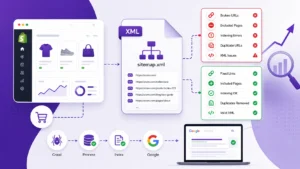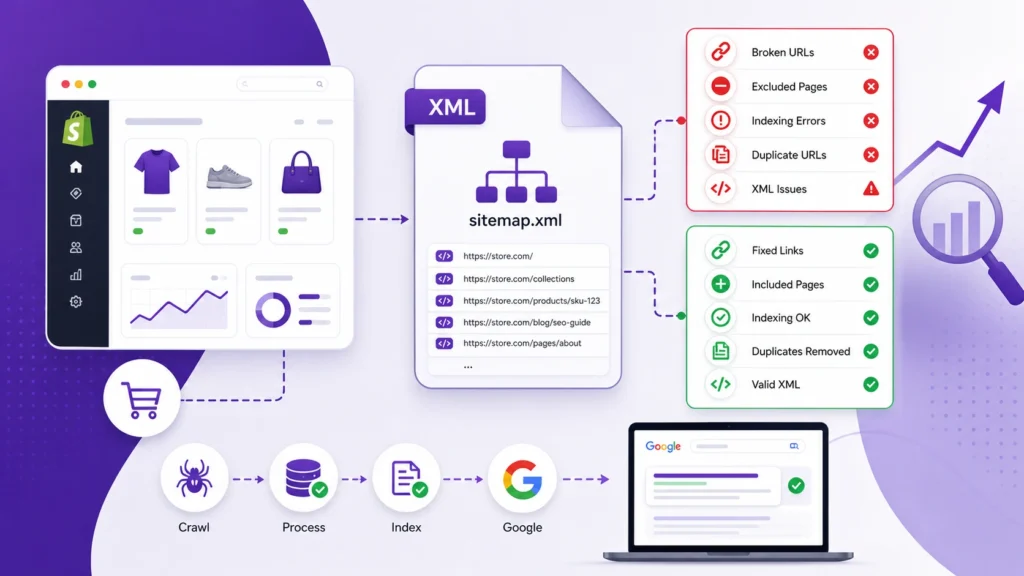
Shopify automatically generates an XML sitemap for your store, so you normally do not need to build one manually. The more important SEO task is making sure Google can access the sitemap, process it successfully, and find the important URLs you actually want it to discover.
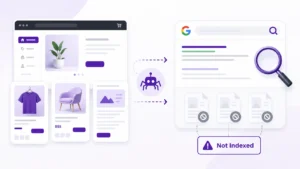
A successful sitemap submission, however, does not mean every product, collection, page, or blog post will automatically be indexed.
If your Shopify sitemap shows an error in Google Search Console, contains unexpected URLs, or your important pages still aren’t appearing in Google, you need to determine whether the problem is actually the sitemap or something happening at the page level.
This guide explains the most common Shopify sitemap SEO problems, how to diagnose them, and what to fix first.
What Is a Shopify Sitemap?
A sitemap is an XML file that provides search engines with information about URLs that are available on your website.
Shopify automatically generates a sitemap.xml file for your store. The sitemap can include URLs for products, collections, pages, blog posts, and other relevant store content. Shopify also automatically updates the sitemap as your store content changes.
For a Shopify store, the sitemap is normally available at:
https://yourdomain.com/sitemap.xml
You don’t normally need to create this file yourself.
The important distinction is that a sitemap is primarily a discovery signal. It helps Google learn which URLs exist, but it is not an instruction to index every URL.
Google can crawl a URL listed in your sitemap and still decide not to index it.
How Shopify’s Sitemap Works
Shopify uses a sitemap structure that separates different types of store content.
Your main sitemap.xml can reference separate sitemap files for areas such as:
- Products
- Collections
- Blogs
- Webpages
This allows larger stores to organize their URLs without putting everything into one enormous XML file. Shopify automatically manages these sitemap files rather than requiring store owners to manually regenerate them.
That means most Shopify SEO work should not focus on editing the sitemap itself.
Instead, focus on:
- Making sure the sitemap is accessible.
- Making sure Google can process it.
- Checking whether important URLs are included.
- Making sure those URLs are technically indexable.
- Making sure sitemap URLs agree with your preferred canonical URLs.
- Investigating excluded URLs separately in Google Search Console.


Does a Shopify Sitemap Guarantee Indexing?
No.
This is one of the most important things to understand about sitemap SEO.
Submitting sitemap.xml tells Google about URLs you want it to discover. It does not guarantee that Google will crawl every URL or include every page in search results.
Google explicitly notes that not every URL in a sitemap will necessarily be crawled, depending on factors such as the site, its size, activity, and other circumstances.
So this situation is possible:
Sitemap submitted → sitemap processed successfully → important product still not indexed
That does not automatically mean the sitemap is broken.
The product itself may have an indexing, content, canonical, accessibility, or quality-related issue.
Common Shopify Sitemap Problems and How to Fix Them
1. Shopify Sitemap Cannot Be Found
A basic problem is that Google cannot access the sitemap URL.
Start by opening:
https://yourdomain.com/sitemap.xml
If the URL does not load correctly, investigate before submitting it again.
Check:
- Is the domain correct?
- Is the store publicly accessible?
- Is the sitemap URL correct?
- Is the correct domain being used?
- Has the store recently migrated domains?
- Is the store still private?
Shopify states that its sitemap is generated at the root of the store’s domain. A private store can prevent Google from accessing the sitemap.
How to fix it
First confirm that the sitemap loads publicly.
If the sitemap works in a browser but Google Search Console reports a problem, use Google’s URL Inspection tools and the Sitemaps report to investigate Google’s ability to fetch it.
2. Google Search Console Says “Couldn’t Fetch”
A “Couldn’t fetch” status means Google was unable to retrieve the sitemap successfully.
Google lists several possible causes, including:
- Robots.txt blocking the sitemap
- Incorrect sitemap URL
- Server availability problems
- HTTP errors
- Other temporary fetching problems
Don’t immediately assume that the XML itself is wrong.
How to troubleshoot it
Check the sitemap directly first.
Then check:
- The URL submitted to Search Console.
- The selected Search Console property.
- Whether the sitemap is publicly accessible.
- Whether robots.txt is preventing Google from accessing it.
- Whether the sitemap returns a successful response.
- Whether the problem continues after Google retries the fetch.
If Google can successfully fetch the sitemap but reports problems with individual URLs, move on to URL-level troubleshooting rather than repeatedly resubmitting the sitemap.
3. Robots.txt Is Blocking the Sitemap
Robots.txt controls which URLs crawlers are allowed to request.
Shopify provides a default robots.txt configuration designed for Shopify stores. Shopify also warns that changing the file without a specific technical reason can create SEO problems.
A sitemap should remain accessible to search engines.
How to fix it
Open:
https://yourdomain.com/robots.txt
Review the directives and make sure you haven’t accidentally created a rule that prevents Google from accessing the sitemap.
Don’t use robots.txt as a shortcut for solving indexing or canonical problems.
For example, if you have duplicate product URLs, blocking them in robots.txt may prevent Google from crawling those URLs without necessarily resolving how Google handles them in search.
4. The Sitemap Contains URLs That Cannot Be Accessed
Another common problem occurs when URLs listed in the sitemap cannot be successfully crawled.
Google’s Sitemaps documentation specifically identifies inaccessible URLs as a sitemap error that should be investigated.
Potential causes include:
- 404 pages
- Server errors
- Redirected URLs
- Incorrect URLs
- Domain mismatches
- URLs that are no longer available
For example, if a product was deleted but a sitemap entry still points to a URL returning 404, that URL deserves investigation.
How to fix it
Use Google Search Console’s URL Inspection tool on affected URLs.
Ask:
- Does the URL load?
- Does it return a successful response?
- Is the page intended to exist?
- Is it redirecting somewhere else?
- Is the page indexable?
- Is the URL actually the preferred version?
Fix the underlying URL problem instead of treating sitemap resubmission as the solution.
5. Sitemap URLs and Canonical URLs Don’t Match
This is particularly important for Shopify stores because ecommerce sites can expose multiple URL versions.
A product may be accessible through different paths, while the store still needs to communicate which URL is preferred.
For example:
/products/example-product
may also be accessible through a collection-based URL.
Shopify automatically handles canonical URLs in standard configurations, but custom themes, apps, and other modifications can introduce conflicting signals.
Your sitemap should reinforce the URLs you actually want Google to treat as important.
If your sitemap points toward one URL while canonical tags, internal links, or redirects consistently point somewhere else, investigate the conflict.
For more detail on Shopify’s canonical URL issues, see the existing guide on Shopify canonical URL problems.
What should you check?
Compare:
- Sitemap URL
- Canonical URL
- Internal links
- Redirect destination
- Actual page URL
The strongest solution is usually consistency.
6. Your Sitemap Is Submitted Successfully, but Products Are Not Indexed
This is one of the most misunderstood Shopify SEO problems.
A successful sitemap does not guarantee indexing.
Suppose Google Search Console shows:
Sitemap: Success
But one of your important products still isn’t indexed.
That does not necessarily mean the sitemap has failed.
The problem may be with the product page itself.
Check the page for:
- Noindex directives
- Canonical issues
- Redirects
- Crawl accessibility
- Thin or unhelpful content
- Duplicate content
- Weak internal linking
- Incorrect publication status
- Other indexing exclusions
Google’s Page Indexing documentation distinguishes sitemap processing from individual URL indexing. Google can process a sitemap while individual URLs remain excluded.
If you regularly deal with Shopify product indexing problems, see the related guide on Shopify products not being indexed.
7. Important Shopify Pages Are Missing From the Sitemap
Shopify automatically generates its sitemap, but you should still understand which important content is actually being surfaced to search engines.
If an important page is unexpectedly absent, don’t immediately assume the sitemap generator is broken.
First check whether the page itself is:
- Published
- Publicly accessible
- Intended to be indexed
- Available through the Online Store
- Canonicalized correctly
- Otherwise eligible for search
The goal isn’t to force every URL into the sitemap.
The goal is to make sure important, indexable pages are discoverable.
8. Old URLs Are Still Appearing in Search Console
Search Console may continue to report URLs that no longer exist.
This can happen after:
- Product deletions
- Collection changes
- Site migrations
- URL changes
- Store restructuring
Google explains that removing a sitemap from the Sitemaps report does not make Google forget URLs previously discovered through that sitemap.
So don’t panic if an old URL remains visible in Search Console after you have corrected your sitemap.
Investigate whether the URL:
- Returns 404
- Redirects
- Has been replaced
- Should still exist
- Is appearing because of external or internal links
The appropriate solution depends on what happened to the URL.
9. You Submitted the Sitemap to the Wrong Search Console Property
This can happen when a store has multiple versions or domains.
For example:
http://example.comhttps://example.comhttps://www.example.com- A different international domain
Google notes that the Sitemaps report is property-specific. A sitemap submitted under one property won’t necessarily appear under another property.
How to fix it
Make sure you’re working inside the correct verified Google Search Console property.
Then submit the sitemap associated with the correct domain.
This becomes particularly important after:
- Domain migrations
- HTTPS migrations
- International expansion
- Primary-domain changes
- Shopify market/domain changes
10. Your Sitemap and Internal Links Send Different Signals
A sitemap is only one part of your site’s URL architecture.
Suppose your sitemap consistently identifies:
/products/example-product
as the preferred product URL.
But your internal navigation repeatedly links to alternate URL versions.
That’s worth investigating.
Google uses links and site structure to understand relationships between pages, so your sitemap should not be treated as an isolated SEO file.
Your store should ideally send consistent signals through:
- Navigation
- Internal links
- Canonical tags
- Redirects
- Sitemap URLs
If you’re improving your Shopify site structure, the existing Shopify internal linking guide can help with the broader architecture.
How to Check Your Shopify Sitemap
You can perform a basic sitemap check without installing an SEO app.
Step 1: Open the sitemap
Visit:
https://yourdomain.com/sitemap.xml
Confirm that the file loads.
Step 2: Check the sitemap structure
Look for the sitemap references that Shopify generates for your store.
You should expect Shopify’s automated sitemap system to organize different types of store content into separate sitemap files.
Step 3: Open Google Search Console
Go to the Sitemaps report for the correct property.
Step 4: Submit sitemap.xml
Shopify recommends submitting the store’s sitemap.xml file through Google Search Console.
Step 5: Review the status
Look for statuses such as:
- Success
- Couldn’t fetch
- Sitemap has errors
If the sitemap is successful, don’t assume your work is finished.
Review whether the important pages you care about are actually being crawled and indexed.

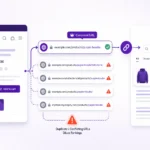

How to Troubleshoot a Shopify Sitemap Error
When Search Console reports a sitemap problem, use this sequence.
1. Check the sitemap URL manually
Does it load?
2. Check the Search Console property
Are you using the correct domain?
3. Check robots.txt
Can Google access the sitemap?
4. Check the sitemap response
Is the sitemap returning an error?
5. Inspect affected URLs
If Google can read the sitemap but reports URL-level problems, inspect those URLs individually.
6. Check canonical signals
Does the sitemap URL match the preferred canonical?
7. Check redirects
Are sitemap URLs redirecting unnecessarily?
8. Check indexability
Is the page allowed to be indexed?
9. Resubmit when appropriate
Google recommends resubmitting a sitemap after fixing significant sitemap problems or when a fetch has failed and the underlying issue has been corrected.
Don’t repeatedly resubmit the same broken sitemap without fixing the cause.
Shopify Sitemap Problems vs. Indexing Problems
These two issues are related, but they aren’t the same.
| Situation | Likely issue |
|---|---|
Google cannot fetch sitemap.xml | Sitemap/access problem |
| Sitemap returns XML errors | Sitemap formatting or generation problem |
| Sitemap contains inaccessible URLs | URL-level problem |
| Sitemap is successful but product isn’t indexed | Page indexing problem |
| Product has wrong canonical | Canonicalization problem |
| Page is blocked by noindex | Indexability problem |
| Page returns 404 | URL/status problem |
| Important page has no internal links | Site architecture/discovery problem |
This distinction can save a lot of wasted SEO work.
If your sitemap says Success, but your pages are still not indexed, don’t keep rebuilding or resubmitting the sitemap.
Investigate the affected pages.
For broader indexing problems, you can also review the existing guide to Google Search Console indexing issues.
Should You Edit Shopify’s Sitemap?
For most stores, no.
Shopify automatically generates and updates its sitemap. You generally don’t need to manually edit an XML sitemap every time you add a product or blog post.
Instead, focus on fixing the conditions that affect the URLs Shopify is generating.
If an important URL isn’t appearing as expected, investigate:
- Store publication status
- Page accessibility
- Canonicalization
- Indexability
- Theme behavior
- Apps
- Redirects
- Site structure
Changing technical files without understanding the underlying issue can create more problems than it solves.

Shopify Sitemap SEO Best Practices
Keep important URLs discoverable
Your most valuable products, collections, pages, and articles should be accessible through your site’s structure as well as the sitemap.
A sitemap should complement good internal linking, not replace it.
Keep canonical signals consistent
Your preferred URLs should be reflected consistently through:
- Canonicals
- Internal links
- Redirects
- Sitemap entries
Don’t use the sitemap to force indexing
Adding a URL to the sitemap does not guarantee that Google will index it.
If an important page isn’t indexed, diagnose the page itself.
Don’t block the sitemap
Make sure robots.txt and other access controls aren’t preventing Google from retrieving it.
Don’t obsess over every excluded URL
Not every Shopify-generated URL needs to appear in Google.
The objective is not:
“Get every URL indexed.”
The better objective is:
“Make sure the right URLs are discoverable, indexable, useful, and clearly prioritized.”
Review sitemap health after major changes
Pay particular attention after:
- Domain migrations
- Theme changes
- Large product deletions
- Collection restructuring
- International expansion
- Major app installations
- SEO-related theme modifications
Shopify Sitemap SEO Checklist
Use this checklist when auditing a Shopify store.
Sitemap accessibility
sitemap.xmlloads publicly- The correct domain is being used
- Google Search Console is verified
- The correct Search Console property is selected
- Google can fetch the sitemap
- Robots.txt isn’t blocking the sitemap
URL quality
- Important product URLs are accessible
- Important collection URLs are accessible
- Important pages are accessible
- Sitemap URLs aren’t unnecessarily redirected
- Sitemap URLs don’t lead to obvious 404 pages
- Sitemap URLs use the intended domain
Indexing
- Important pages are indexable
- Important products aren’t accidentally noindexed
- Important collections aren’t accidentally excluded
- Indexing problems are investigated at the page level
Canonicalization
- Important URLs have appropriate canonical signals
- Sitemap URLs agree with preferred canonical URLs
- Internal links reinforce preferred URLs
- Canonicals don’t point to irrelevant pages
- Canonicals don’t unnecessarily point through redirects
Monitoring
- Google Search Console Sitemaps report is reviewed
- Page Indexing report is reviewed
- Important URLs are checked with URL Inspection
- Sitemap issues are investigated after major site changes
Frequently Asked Questions
Does Shopify automatically create a sitemap?
Yes. Shopify automatically generates a sitemap for its stores and updates the relevant sitemap files as store content changes.
Where is the Shopify sitemap?
For most Shopify stores, the sitemap is available at:https://yourdomain.com/sitemap.xml
Do I need to submit my Shopify sitemap to Google?
Shopify recommends submitting sitemap.xml through Google Search Console to help Google discover and crawl your store’s URLs.
Does submitting a Shopify sitemap guarantee indexing?
No. Sitemap submission helps Google discover URLs, but it does not guarantee that Google will crawl or index every URL.
Why does Google say it can’t fetch my Shopify sitemap?
Possible causes include an incorrect sitemap URL, robots.txt restrictions, server/accessibility problems, or other fetching errors. Check the sitemap URL directly and use the Sitemaps report and URL Inspection tools to diagnose the specific problem.
Should I create a separate sitemap for every Shopify product?
Usually not. Shopify automatically manages its sitemap structure for your store’s products, collections, blogs, and webpages.
Why are my Shopify products not indexed even though the sitemap is successful?
A successful sitemap only means Google was able to process the sitemap. Individual pages can still be excluded because of indexing, canonical, accessibility, content, or other page-level conditions.
Should I edit Shopify’s robots.txt to fix sitemap problems?
Don’t change robots.txt without a specific reason. Shopify provides a default robots.txt configuration designed for its stores, and incorrect changes can interfere with crawling.
Should I worry about every URL Google finds in my Shopify store?
No. Ecommerce platforms naturally generate URL variations. The important question is whether your important pages are discoverable and whether your canonical, internal-linking, redirect, and sitemap signals are consistent.
Final Takeaway
Shopify makes sitemap management relatively simple because the platform automatically generates and updates your store’s XML sitemap.
The SEO challenge is understanding what a sitemap can and cannot do.
A sitemap can help Google discover your URLs, but it cannot force Google to index them.
If your sitemap shows an error, start with accessibility, robots.txt, the submitted URL, Search Console property, and the affected URLs.
If the sitemap is successfully processed but important products or collections aren’t indexed, move your investigation to the individual pages.
For most Shopify stores, the strongest sitemap strategy is straightforward:
Make the sitemap accessible → submit it to Search Console → keep preferred URLs consistent → build strong internal links → monitor important pages → investigate indexing problems separately.
The goal isn’t to get every Shopify-generated URL into Google’s index.
The goal is to make sure Google can efficiently discover and understand the pages that genuinely deserve to appear in search.