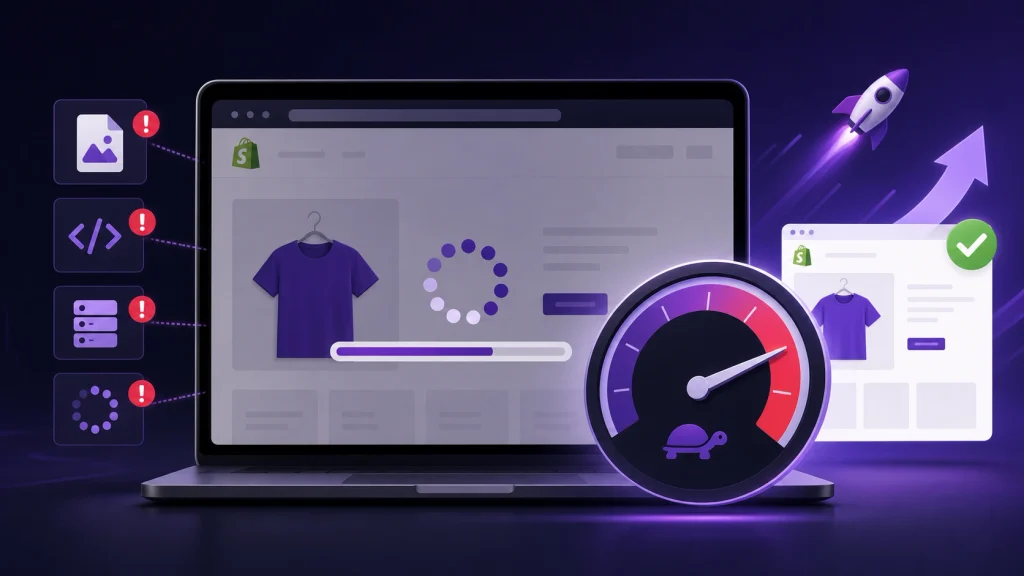
A slow Shopify store can create more than a frustrating shopping experience. Poor storefront performance can make important pages slower to load, reduce responsiveness, create layout instability, and make it harder for visitors to interact with your content.
For SEO, the most important question is not simply “What is my PageSpeed score?” It is “What is making this page slow, and which real-user experience metrics are being affected?”
Shopify measures storefront performance through Core Web Vitals: Largest Contentful Paint (LCP), Interaction to Next Paint (INP), and Cumulative Layout Shift (CLS). Shopify considers an LCP of 2.5 seconds or less, INP below 200 milliseconds, and CLS of 0.1 or less to be good thresholds.
Here are the Shopify site speed problems worth investigating first.
Why Shopify Site Speed Matters for SEO
Google uses page experience signals, including Core Web Vitals, as part of its ranking systems. However, passing Core Web Vitals does not automatically make a page rank well. Relevance, content quality, authority, and other search factors still matter.
That means speed should be treated as part of a broader SEO strategy rather than a replacement for good content and technical SEO.
A faster storefront can also make it easier for visitors to browse products, interact with filters, read content, and move through the buying journey.
Shopify’s own performance documentation identifies apps, third-party services, analytics, theme code, images, and videos among the factors that can influence storefront performance.
10 Shopify Site Speed Problems That Can Hurt SEO
1. Too Many Shopify Apps and Third-Party Scripts
Apps are one of the easiest ways to add functionality to a Shopify store.
Reviews, popups, chat, subscriptions, personalization, analytics, loyalty programs, tracking and other features can all be useful. The problem begins when too many scripts are loaded on pages where they are not needed.
Third-party JavaScript competes for the browser’s main-thread time. Render-blocking scripts can delay the first meaningful paint, while heavier JavaScript can make interactions slower and hurt INP.
What to check:
- Which apps load on every page?
- Which scripts are actually required?
- Are scripts loaded before the main content?
- Are old app assets still present?
- Can non-critical scripts be deferred?
- Are two apps performing similar functions?
Do not automatically remove every app. Instead, measure its performance cost against the business value it provides.
2. The Main Hero Image Is Loading Too Slowly
The largest visible element near the top of a page is often the LCP element.
On ecommerce sites, this is frequently:
- A hero image
- A large product image
- A collection banner
- A promotional image
- A slideshow image
If the LCP image is lazy-loaded, hidden behind an animation, served at an unnecessarily large size, or discovered late, the page can take longer to reach a good LCP.
Shopify specifically recommends not lazy-loading the LCP image and recommends using fetchpriority="high" when appropriate.
A common mistake is applying the same lazy-loading rule to every image.
Images below the initial viewport can benefit from lazy loading. The primary above-the-fold image generally should not be treated the same way.
3. Product Images Are Larger Than They Need to Be
High-quality product photography is important for ecommerce, but uploading extremely large images does not automatically produce a better experience.
An image displayed at a relatively small size does not necessarily need to be downloaded at several times that resolution.
Large media files increase the amount of data the browser needs to process and can delay visual content.
Shopify’s theme documentation recommends using its image_url and image_tag filters because they can handle responsive image generation and useful image attributes such as dimensions.
Better approach:
- Use appropriately sized images.
- Generate responsive image variants.
- Avoid unnecessarily huge source files.
- Provide image dimensions.
- Lazy-load images that are genuinely below the fold.
- Prioritize important above-the-fold imagery.
For a broader ecommerce image SEO workflow, you can also reference the existing Shopify image SEO guide.
4. Too Much JavaScript Is Running on the Page
JavaScript can make a storefront interactive, but excessive JavaScript can also make the browser work harder before the page becomes responsive.
Common sources include:
- App scripts
- Tracking tools
- Sliders
- Popups
- Product configurators
- Review widgets
- Chat tools
- Personalization systems
- Custom theme scripts
- A/B testing tools
Shopify recommends auditing unused scripts and loading non-critical JavaScript only when necessary. Its documentation also recommends defer or async where appropriate and loading some functionality only after user interaction.
The goal is not “zero JavaScript.”
The goal is to avoid making the browser execute unnecessary work before the user can see and interact with the important content.
5. Render-Blocking CSS and JavaScript Delays the First Paint
A browser cannot immediately display content when critical resources are blocking rendering.
Shopify identifies render-blocking stylesheets and synchronous scripts as common causes of delayed rendering. Third-party apps can add another layer of blocking resources.
This can affect the beginning of the loading experience and may contribute to poor LCP.
Review:
- CSS files loaded before visible content
- Synchronous scripts
- App-injected stylesheets
- Unnecessary JavaScript in the document head
- Multiple stylesheets that could be simplified
- Resources that are not required for the first screen
Do not blindly combine or minify everything. The right optimization depends on what the browser actually needs for the first render.
6. Heavy Liquid Code Can Increase TTFB
Not every Shopify speed problem happens inside the browser.
Shopify renders Liquid server-side, and inefficient Liquid can increase the time required to generate the page response.
Deeply nested loops, repeated operations, excessive metafield access, and unnecessary work inside loops can contribute to slower rendering. Shopify identifies nested Liquid loops as a potential high-impact source of TTFB problems on complex themes.
This matters because a slow server response delays everything that follows.
If TTFB is high, optimizing browser-side JavaScript alone may not solve the underlying problem.
For a wider technical review, the Shopify technical SEO checklist can help you evaluate performance alongside other technical SEO issues.
7. Too Many Sections Make Pages Heavier
Shopify makes it easy to build visually rich pages with sections and blocks.
That flexibility can become a performance problem when a page contains:
- Multiple sliders
- Large image galleries
- Several promotional banners
- Video backgrounds
- Repeated product sections
- Complex mega menus
- Multiple interactive widgets
- Large amounts of duplicated markup
More page elements mean more HTML, CSS, JavaScript and media for the browser to process.
The answer is not to remove useful content simply to make a performance report look better.
Instead, ask whether each section contributes enough value to justify the performance cost.
8. Layout Shifts Cause CLS Problems
A page can technically load quickly and still provide a poor experience if its content keeps moving.
That is what CLS measures.
Common Shopify causes include:
- Images without reserved dimensions
- Fonts changing the layout after loading
- App-injected elements
- Popups appearing unexpectedly
- Banners inserted after the initial render
- Dynamic content changing the page structure
Shopify identifies images without dimensions, late font changes and app-injected content as common causes of layout instability.
A simple example:
A visitor starts reading a product description. An app loads a promotional banner above it, pushing the content downward.
The page may not be particularly slow, but the experience is unstable.
Reserve space for content that will appear and avoid unexpected layout changes wherever possible.
9. Animations and Video Are Doing Too Much
Animations can make an ecommerce store look polished.
They can also add unnecessary rendering and JavaScript work.
The same applies to:
- Autoplaying videos
- Background videos
- Animated sliders
- Entrance effects
- Large carousel components
- Multiple moving elements above the fold
Shopify specifically recommends avoiding animations that delay the LCP image.
Before keeping an effect, ask:
Does this improve the customer’s understanding or buying decision enough to justify the performance cost?
If not, simplify it.
10. Too Many Third-Party Requests Slow the Critical Path
A Shopify page may depend on resources from several external services.
Each external dependency can introduce additional work involving DNS resolution, connections, downloads and JavaScript execution.
Examples include:
- Analytics
- Advertising platforms
- Chat
- Reviews
- Social widgets
- A/B testing
- Personalization
- Embedded media
- Tracking systems
Shopify’s performance documentation specifically calls out blocking requests to third-party origins as a possible source of performance problems.
This is why a store can remain slow even after its theme images have been optimized.
The problem may be the collection of external services rather than one obvious file.


How to Find the Real Shopify Speed Problem
Do not start by installing another “speed optimization” app.
Start with measurement.
Step 1: Check Shopify’s Web Performance Reports
Shopify provides real-user performance information through its Web Performance reports.
The reports cover:
- LCP
- INP
- CLS
- Mobile and desktop experiences
- Performance changes over time
Shopify notes that performance data can take up to 36 hours to appear and is available for the previous 90 days.
This is useful because real-user data tells you what visitors are actually experiencing.
Step 2: Test Important Templates
Do not test only the homepage.
Check representative pages such as:
- Homepage
- Collection page
- Product page
- Blog article
- Cart
- Other important landing pages
A product page can have completely different performance problems from the homepage.
Step 3: Look at LCP, INP and CLS Separately
A poor overall score does not tell you what to fix.
Use the individual metrics to identify the type of problem.
| Metric | What it measures | Common Shopify causes |
|---|---|---|
| LCP | Loading of the main visible content | Large images, render blocking, apps, slow theme rendering |
| INP | Responsiveness after interactions | Heavy JavaScript, app scripts, main-thread work |
| CLS | Visual stability | Missing image dimensions, injected content, fonts, popups |
Shopify currently classifies LCP ≤ 2.5s, INP < 200ms and CLS ≤ 0.1 as good.
Step 4: Identify the Largest JavaScript Offenders
If INP or loading performance is poor, inspect JavaScript rather than guessing.
Shopify recommends using tools such as Lighthouse’s JavaScript treemap to identify large dependencies and focus optimization on the biggest contributors.
Look for scripts that:
- Load on every page
- Are unusually large
- Block rendering
- Run before interaction
- Belong to unused features
- Come from apps you no longer need
What Should You Fix First?
When a Shopify store has several speed problems, prioritize them instead of making dozens of changes at once.
A practical order is:
1. Remove unnecessary apps and scripts
Start with functionality you no longer need.
2. Fix the LCP element
Find the largest above-the-fold element and determine why it is loading late.
3. Reduce unnecessary JavaScript
Defer, remove or conditionally load non-critical scripts.
4. Optimize images
Use appropriately sized responsive images and correct loading behavior.
5. Investigate theme and Liquid performance
If the server response is slow, inspect the theme’s Liquid rendering.
6. Fix CLS issues
Reserve space for images, banners and other dynamic elements.
7. Simplify heavy page templates
Remove sections and effects that add substantial cost without providing equivalent customer value.
This approach is more useful than chasing a perfect synthetic score without understanding the cause.
What Not to Do When Improving Shopify Speed
Don’t install multiple speed apps blindly
Adding another app to solve an app-related performance problem can create more code and requests.
Don’t lazy-load every image
The main above-the-fold image may be the LCP element and should generally be loaded eagerly.
Don’t remove useful functionality just to improve a score
If an app directly supports an important business function, measure its cost and look for a more efficient implementation before removing it.
Don’t rebuild the entire theme immediately
A slow store does not automatically need a complete redesign.
First identify whether the main issue is:
- Apps
- JavaScript
- Images
- Liquid
- CSS
- Page structure
- Third-party requests
Don’t treat PageSpeed Insights as the only source of truth
Lab testing is useful for diagnosis, but real-user data provides important evidence about actual visitor experiences.

Shopify Site Speed SEO Checklist
Before considering a performance problem resolved, check:
- Shopify Web Performance reports have been reviewed
- LCP has been identified
- INP has been checked
- CLS has been checked
- Unused apps have been reviewed
- Third-party scripts have been audited
- Old app code has been checked
- LCP images are not unnecessarily lazy-loaded
- Images are appropriately sized
- Images have dimensions to reduce layout shifts
- Non-critical JavaScript is deferred where appropriate
- Render-blocking resources have been investigated
- Heavy Liquid sections have been reviewed
- Large page templates have been simplified where appropriate
- Unnecessary animations have been removed
- Video loading has been reviewed
- Important templates have been tested on mobile
- Changes have been measured after implementation
Frequently Asked Questions
Does Shopify site speed affect SEO?
Yes. Page experience and Core Web Vitals are part of Google’s ranking systems. However, speed is not the only factor that determines search visibility. A fast page still needs relevant, useful content and strong overall SEO.
What makes a Shopify store slow?
Common causes include third-party apps, JavaScript, large images, render-blocking resources, heavy Liquid code, complex page layouts, animations, videos and external services. Shopify identifies many of these as key factors affecting storefront performance.
Are Shopify apps bad for SEO?
Not inherently. Apps can provide important functionality. The problem is unnecessary or poorly optimized code that adds significant work to the storefront.
Should I lazy-load Shopify images?
Generally, images outside the initial viewport can be lazy-loaded. Your main LCP image should generally not be lazy-loaded because doing so can delay the browser from fetching the most important visible content.
What is a good Shopify Core Web Vitals score?
Shopify’s current good thresholds are LCP of 2.5 seconds or less, INP below 200 milliseconds, and CLS of 0.1 or less. These metrics should be considered together rather than relying on a single performance score.
Final Takeaway
Shopify site speed problems rarely come from one universal issue.
A store may be slow because of an oversized LCP image. Another may be held back by app scripts, while a third may have inefficient Liquid rendering or an overly complicated page template.
That is why the best approach is to measure first, identify the bottleneck, fix the highest-impact problem, and then measure again.
For SEO, the goal is not to chase an arbitrary green score. The goal is to create Shopify pages that load important content promptly, respond smoothly to users, remain visually stable, and give search engines and visitors a strong overall experience.