Changing your WordPress theme can completely transform your website. A fresh design often improves user experience, reflects your brand better, and may even boost website performance. However, changing a theme without proper planning can also create unexpected problems.
You might lose custom styling, break important layouts, remove widgets, or accidentally affect your SEO. In some cases, a new theme can even slow down your website or create compatibility issues with plugins.
The good news? Most of these problems are easy to avoid with the right preparation.
This guide covers the most important things to do before changing a WordPress theme. You’ll learn how to change your WordPress theme safely, protect your content, preserve your SEO, and minimize downtime without risking your live website.
Why You Should Never Change a WordPress Theme Without Preparation
Many website owners believe changing a theme only affects the appearance of their site. While your posts, pages, and media files remain in the WordPress database, a theme controls many other elements, including:
- Homepage layouts
- Widgets and sidebars
- Navigation menus
- Theme options
- Custom CSS
- Template files
- Typography and spacing
Some themes also include custom shortcodes, page templates, or built-in features that may disappear after switching.
For example, imagine moving into a new house. Your furniture comes with you, but nothing is in the right place until you arrange it again. Switching WordPress themes works much the same way. Your content usually stays intact, but parts of your site’s design and functionality may need attention afterward.
Taking time to prepare before switching a WordPress theme helps prevent unnecessary troubleshooting later.
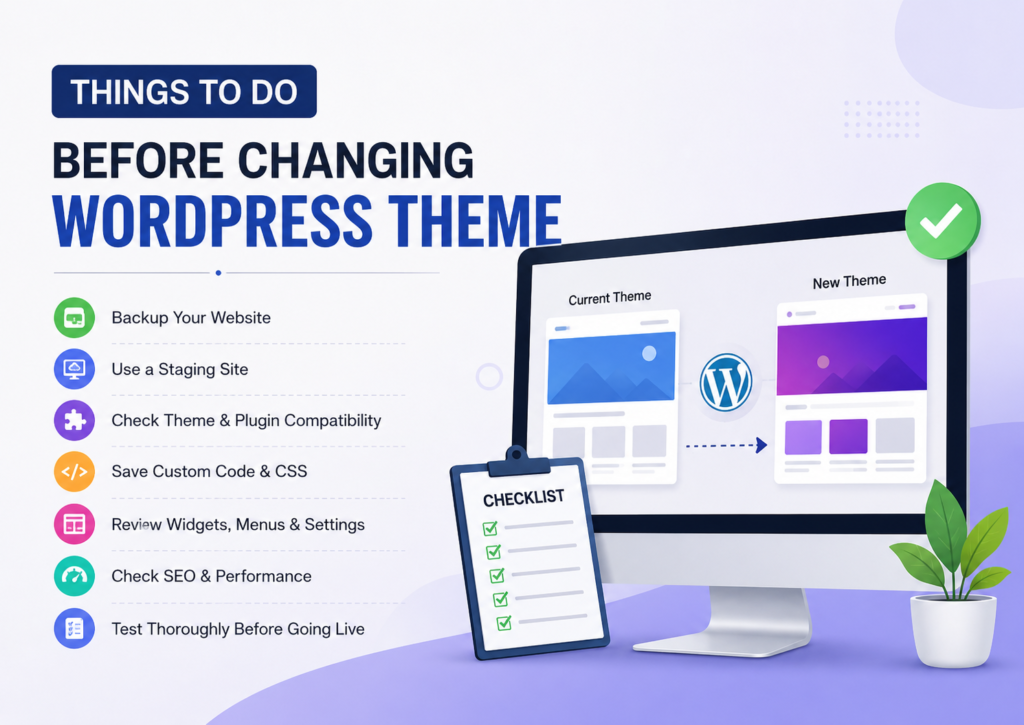
WordPress Theme Change Checklist
Before changing your WordPress theme, make sure you:
- Create a complete website backup.
- Test the new theme on a staging site.
- Check WordPress theme compatibility with your plugins.
- Save custom CSS, theme settings, and custom code.
- Record your widgets and navigation menus.
- Benchmark your website’s SEO and performance.
- Test everything before activating the new theme.
Following this WordPress theme change checklist makes the entire process much smoother.
1. Create a Complete Website Backup
One of the first things to do before changing a WordPress theme is creating a full website backup.
Even if you’ve tested everything carefully, unexpected issues can still happen. A backup gives you a reliable rollback option if something goes wrong.
Your backup should include:
- WordPress database
- Themes
- Plugins
- Uploads and media files
- Configuration files
- Custom code
This step allows you to restore your website after a failed theme change instead of rebuilding everything from scratch.
Many reputable hosting providers offer automatic backups. You can also create manual backups using trusted backup plugins or your hosting control panel.
Before proceeding, verify that your backup completed successfully and can actually be restored. A backup that cannot be restored offers little protection.
This simple precaution is one of the most important parts of any WordPress backup before theme change.
2. Use a Staging Site Before Changing Your WordPress Theme
If your website receives regular visitors, avoid testing a new theme on your live site.
Instead, use a staging environment.
A staging site is an exact copy of your live website where you can safely experiment without affecting visitors or search engines.
Testing on a staging site allows you to:
- Preview the new design
- Identify layout issues
- Check plugin compatibility
- Test forms and checkout pages
- Review mobile responsiveness
- Fix problems before going live
Most managed WordPress hosting companies now provide one-click staging environments, making this process much easier than it used to be.
This is also the safest way to change a WordPress theme without downtime or breaking your live website.
If your hosting provider doesn’t offer staging, you can create a local development environment for testing before deployment.
3. Check WordPress Theme Compatibility
Not every theme works equally well with every website.
Before switching WordPress themes, verify that your new theme supports the features your website already relies on.
Check compatibility with:
- Your current WordPress version
- Active plugins
- WooCommerce (if applicable)
- Popular page builders
- SEO plugins
- Contact forms
- Caching plugins
- Multilingual plugins
It’s also worth reviewing the theme’s documentation and support resources before installing it.
A well-maintained theme should receive regular updates, follow WordPress coding standards, and support modern web technologies.
Choosing a responsive, mobile-friendly theme also helps maintain a consistent user experience across devices.
Poor theme compatibility can lead to broken layouts, missing functionality, or unexpected WordPress theme change issues after activation.
4. Save Your Custom Code and Custom CSS
Many website owners customize their theme over time.
These changes often include:
- Custom CSS
- Tracking scripts
- Header or footer code
- Custom PHP snippets
- Theme-specific settings
Unfortunately, these modifications don’t always transfer automatically when you activate a new theme.
Before changing your WordPress theme, save every customization you’ve made.
Check places such as:
- Appearance → Customize
- Additional CSS
- Theme Options
- Theme files like
functions.php - Header and footer integrations
- Child theme customizations
If you’ve modified your parent theme directly, consider moving those changes into a child theme or a dedicated code management plugin going forward. This approach makes future theme changes much easier.
Keeping a WordPress theme customization backup prevents hours of trying to remember which small tweaks made your site work the way you wanted.
5. Document Your Widgets, Menus, and Homepage Settings
Many users ask:
Will changing a WordPress theme delete content?
Usually, no.
Posts, pages, images, and media remain stored in your WordPress database.
However, your widgets, sidebar layouts, homepage sections, and navigation menu assignments may change after switching themes.
Some themes use completely different widget areas, while others introduce new homepage builders.
Before activating a new theme, make note of:
- Navigation menu assignments
- Widget locations
- Sidebar configurations
- Homepage settings
- Blog page settings
- Footer widgets
- Theme-specific homepage sections
Taking screenshots can make restoration much faster.
If your homepage uses a page builder, also confirm that the new theme fully supports it.
Spending just a few minutes documenting these settings can save a surprising amount of time later.
It also reduces the risk of visitors seeing missing menus, empty sidebars, or misplaced content immediately after your theme switch.
By completing these five preparation steps, you’ve already eliminated many of the common WordPress theme switching mistakes that cause unnecessary downtime, broken layouts, and frustrated users.
6. Test Plugin Compatibility Before Activating the New Theme
Plugins and themes work together to power your website. While a well-coded theme should support popular plugins, conflicts can still occur.
Before activating the new theme, perform a WordPress plugin compatibility check on your staging site.
Pay special attention to plugins that control:
- SEO
- Contact forms
- WooCommerce
- Membership features
- Security
- Caching
- Page builders
- Analytics
Test each important feature instead of assuming everything will work.
For example:
- Submit a contact form.
- Complete a test checkout if you run an online store.
- Verify search functionality.
- Check image galleries.
- Review blog layouts.
- Test login and registration pages.
A few minutes of testing can prevent hours of troubleshooting after your site goes live.
7. Benchmark Your SEO and Website Performance
One of the most common questions website owners ask is:
Does changing a WordPress theme affect SEO?
The short answer is yes – it can, but not because you changed the theme itself.
A new theme may affect:
- Page speed
- Core Web Vitals
- Internal linking structure
- Heading hierarchy
- Schema markup
- Mobile responsiveness
- Image loading
- User experience
Search engines evaluate these factors when ranking websites.
Before switching themes, record your current SEO and performance metrics. This gives you a reliable baseline for comparison after the migration.
Review:
- Organic traffic
- Indexed pages
- Core Web Vitals
- Page speed
- Mobile usability
- Crawl errors
- Top-performing pages
Useful tools include:
- Google Analytics
- Google Search Console
- PageSpeed Insights
If rankings or traffic change unexpectedly after the switch, these reports will help you identify the cause much faster.
This simple step is an essential part of any WordPress theme SEO checklist and helps preserve SEO when changing a WordPress theme.
8. Enable Maintenance Mode If You’re Updating a Live Website
If you’re switching themes directly on your live website, visitors may briefly see broken layouts or incomplete pages.
To avoid confusion, enable WordPress maintenance mode before making major design changes.
Maintenance mode displays a temporary message while you complete the update.
This helps you:
- Deliver a more professional experience.
- Prevent visitors from seeing unfinished pages.
- Reduce support requests caused by temporary issues.
If you’ve already tested everything on a staging site, the maintenance window should only last a few minutes.
For many websites, this small step creates a much smoother transition.
9. Test the New Theme Before Activation
Even after completing your preparation, don’t activate the theme without one final review.
Use the WordPress Theme Preview feature whenever possible, then perform a complete site inspection.
Check every important page, including:
- Homepage
- Blog posts
- Category pages
- Product pages
- Contact page
- Landing pages
- Search results
- 404 page
Next, verify that:
- Navigation menus work correctly.
- Widgets appear in the right locations.
- Images display properly.
- Buttons remain clickable.
- Forms submit successfully.
- Mobile layouts look clean.
- Fonts and colors match your branding.
- Custom CSS loads correctly.
Also test your website on multiple devices and browsers.
A theme may look perfect on a desktop but reveal spacing or navigation issues on mobile devices.
This final review is one of the best practices before changing a WordPress theme and helps you switch WordPress themes without breaking your website.
10. Complete a Final Post-Switch Checklist
Once the new theme is live, don’t stop there.
Spend a few minutes confirming that everything still works as expected.
Your final WordPress theme migration checklist should include:
- Review every major page.
- Test forms and checkout flows.
- Check internal links.
- Confirm menus and widgets.
- Verify homepage settings.
- Inspect custom CSS.
- Check page speed.
- Review mobile responsiveness.
- Monitor Google Search Console for new errors.
- Watch website analytics over the next few days.
If you discover a serious issue, restore your backup or roll back to the previous theme while you investigate.
A successful theme migration doesn’t end with activation – it ends when your website performs as well as, or better than, before.

Common WordPress Theme Switching Mistakes to Avoid
Many WordPress theme change problems happen because website owners rush the process.
Here are some of the most common mistakes:
- Skipping a complete website backup.
- Testing directly on the live website.
- Forgetting to save custom CSS or code snippets.
- Ignoring plugin compatibility.
- Not documenting widgets and menus.
- Choosing a poorly maintained theme.
- Forgetting to test mobile responsiveness.
- Failing to measure SEO performance before and after the switch.
- Ignoring Core Web Vitals and page speed.
- Assuming everything works without testing.
Avoiding these mistakes makes changing your WordPress theme much less stressful.
Frequently Asked Questions
Will changing a WordPress theme delete my content?
No. Your posts, pages, media library, and comments remain stored in the WordPress database. However, widgets, menus, theme settings, and custom layouts may need to be reconfigured after switching themes.
Can I change my WordPress theme without losing content?
Yes. If you create a backup, use a staging site, save your customizations, and test the new theme before activation, you can change your WordPress theme without losing content.
Does changing a WordPress theme affect SEO?
It can. A new theme may change page speed, Core Web Vitals, schema markup, mobile usability, or heading structure. Monitoring your site’s performance before and after the switch helps maintain rankings after changing a WordPress theme.
Should I use a staging site before switching themes?
Yes. A staging site lets you test the new theme without affecting visitors, search engines, or your live website. It is one of the safest ways to prepare before changing a WordPress theme.
What happens to custom CSS when changing themes?
Custom CSS added through your existing theme may not transfer automatically. Save your CSS before switching and reapply it if needed. If possible, store custom code outside the theme to simplify future migrations.
Final Thoughts
Changing your website’s design is exciting, but preparation is what makes the process successful.
Following a structured WordPress theme change checklist helps you protect your content, preserve your SEO, and avoid unnecessary downtime. A complete backup, a staging environment, compatibility testing, and careful post-launch checks can prevent most common issues before they affect your visitors.
Think of a theme change as a website renovation rather than a quick paint job. The better your planning, the smoother the transition.
By following the steps in this guide, you’ll know exactly what to do before changing a WordPress theme – and you’ll be able to make the switch with confidence, knowing your website, users, and search rankings are well protected.
Sources
WordPress Developer Resources – Theme Handbook
WordPress Support – Appearance & Themes
Google Search Central – SEO Starter Guide
Google PageSpeed Insights
Google Search Console Help