Moving an ecommerce website to Shopify is more than transferring products, customers, orders, and design.
From an SEO perspective, you’re also moving the URLs, content, internal links, metadata, canonical signals, structured data, and technical configuration that search engines have already learned about.
A migration can therefore look perfect to customers while quietly creating SEO problems underneath.
The safest approach is to treat SEO as a migration workstream from the beginning, not as something to fix after launch.
This Shopify SEO migration checklist breaks the process into five stages: before migration, Shopify setup, redirect planning, launch, and post-migration monitoring.
Shopify SEO Migration Checklist at a Glance
Before going live, make sure you have:
- Backed up the existing website and SEO data
- Crawled the old website
- Exported important URLs
- Recorded existing title tags and meta descriptions
- Identified high-traffic and high-revenue organic pages
- Reviewed backlinks to important URLs
- Created a complete old-to-new URL map
- Migrated important content
- Preserved important metadata
- Configured 301 redirects
- Checked canonical URLs
- Reviewed robots.txt
- Checked internal links
- Verified structured data
- Configured analytics and conversion tracking
- Tested the Shopify store
- Submitted the new sitemap to Google Search Console
- Checked indexability after launch
- Monitored 404s and organic traffic
- Rechecked important pages after migration
Shopify automatically generates a sitemap.xml for stores, including products, collections, pages, and blog posts. However, the sitemap still needs to be submitted and monitored through Google Search Console after the migration.
What Is a Shopify SEO Migration?
A Shopify SEO migration is the process of moving an existing website or ecommerce store to Shopify while preserving as much of its existing search visibility and SEO value as possible.
The migration could involve moving from:
- WooCommerce
- WordPress
- Magento
- Wix
- Squarespace
- BigCommerce
- A custom ecommerce platform
- Another Shopify store
The platform change itself isn’t necessarily the problem.
The risk comes from changing things search engines depend on.
For example, your migration may change:
- Page URLs
- Product and collection structures
- Internal links
- Page content
- Title tags
- Meta descriptions
- Canonical URLs
- Structured data
- Indexation settings
- XML sitemaps
- Navigation
- Image URLs
- Analytics configuration
If those changes aren’t carefully managed, organic traffic can decline after launch.

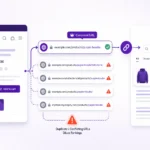
Phase 1: Prepare Before Migrating to Shopify
The most important migration work happens before the new store goes live.
1. Benchmark Your Current SEO Performance
Record your current organic performance before making changes.
At minimum, document:
- Organic traffic
- Organic conversions
- Revenue from organic search
- Top landing pages
- Top-performing product pages
- Top-performing collection pages
- Important blog posts
- Search queries
- Rankings for priority terms
- Indexed pages
- 404 errors
- Existing crawl issues
This gives you a baseline for measuring the migration.
Without a baseline, it becomes difficult to determine whether a traffic change is related to the migration or to another SEO or business change.
For a broader pre-migration review, use this Shopify SEO audit checklist.
2. Crawl the Existing Website
Run a complete crawl of the old website before migrating.
Your crawl should capture information such as:
- URL
- Status code
- Title tag
- Meta description
- H1
- Canonical URL
- Indexability
- Word count
- Internal links
- Images
- Structured data
- Redirects
Don’t rely only on your CMS export.
Some valuable URLs may not appear in your product database, particularly older blog posts, landing pages, campaign pages, or orphaned URLs that still receive organic traffic.
3. Create a Master URL Inventory
Create one spreadsheet containing your important existing URLs.
Useful columns include:
| Old URL | Page Type | Organic Traffic | Revenue | Backlinks | New Shopify URL | Redirect | Status |
|---|---|---|---|---|---|---|---|
| Old product URL | Product | High | High | Yes | New product URL | 301 | Ready |
| Old category URL | Category | High | High | Yes | New collection URL | 301 | Ready |
| Old blog URL | Blog | Medium | Low | Yes | New blog URL | 301 | Ready |
Prioritize pages that already have:
- Organic traffic
- Rankings
- Backlinks
- Conversions
- Revenue
- Strong internal links
These deserve the most careful migration testing.
For a wider migration planning framework, review this website migration SEO checklist.
4. Preserve Important Content
Don’t assume content will automatically migrate correctly.
Compare the old and new versions of important pages.
Check:
- Product descriptions
- Collection descriptions
- Category copy
- Blog articles
- Heading structure
- Internal links
- Image alt text
- FAQs
- Supporting content
A visually better Shopify store can still perform worse if important search-focused content disappears during the migration.
For product-specific content checks, see this Shopify product page SEO guide.
For collection and category content, use this Shopify collection page SEO guide.
5. Record Existing Metadata
Export the current:
- Title tags
- Meta descriptions
- H1s
- Canonical URLs
- Robots directives
- Structured data
Do this before migration.
Your new Shopify templates should preserve important SEO information unless there is a deliberate reason to change it.
Avoid combining a platform migration with a major content rewrite and site restructuring unless necessary. The more variables you change simultaneously, the harder it becomes to diagnose SEO performance afterward.
Use this Shopify meta title and description guide when reviewing metadata before and after the move.
Phase 2: Build the Shopify Store
6. Understand Shopify’s URL Structure
Shopify uses its own URL patterns for different content types.
For example:
- Products use
/products/ - Collections use
/collections/ - Blog content uses
/blogs/ - Pages use
/pages/
This means URLs from your old platform may not have a one-to-one structural match.
That’s why redirect planning needs to happen before launch.
For more guidance on planning Shopify URLs, see this Shopify URL structure SEO guide.
7. Recreate Important Pages
Make sure your important old pages have an appropriate destination in Shopify.
Prioritize:
- High-traffic pages
- High-revenue pages
- Pages with valuable backlinks
- Important product pages
- Important collection pages
- High-performing informational content
Don’t automatically recreate every URL without evaluating its purpose.
A migration is also an opportunity to remove genuinely obsolete content, but deleted URLs should be handled deliberately.
8. Preserve Title Tags and Meta Descriptions
Review your most important pages individually.
Make sure the Shopify version contains appropriate:
- SEO title
- Meta description
- H1
- Main content
Don’t allow default template values to replace carefully optimized metadata.
The goal isn’t to copy every old element blindly. The goal is to avoid accidentally losing useful SEO signals during the platform change.
9. Check Canonical URLs
Verify that canonical tags on the new Shopify site point to the correct preferred URLs.
For important pages, check that:
- The canonical URL is live
- It uses the correct domain
- It uses HTTPS
- It points to the intended page
- It isn’t pointing back to the old platform
- It isn’t creating unexpected duplicate signals
Canonical configuration deserves special attention during ecommerce migrations because products, collections, parameters, and alternative URL paths can create multiple versions of similar content.
Use this Shopify canonical URL guide for a deeper review of canonical implementation.
10. Review Robots.txt and Indexability
Before launch, check whether the new store is unintentionally blocking search engines.
Look for:
- Accidental
noindex - Incorrect robots directives
- Blocked important resources
- Staging restrictions remaining after launch
A migration isn’t successful if customers can access the store but search engines cannot properly crawl the pages you want indexed.
For a broader technical review, follow this Shopify technical SEO checklist.
11. Preserve Internal Links
Internal links are easy to overlook during a migration.
Review links within:
- Navigation
- Product descriptions
- Collection descriptions
- Blog posts
- Footer
- Editorial content
- Related-product sections
Where possible, internal links should point directly to the final Shopify URL rather than passing through a redirect.
This is also a good time to identify pages that became orphaned because navigation or site structure changed.
For a more detailed internal-linking review, see this Shopify internal linking guide.
Phase 3: Build and Test Your 301 Redirect Map
12. Map Every Important Old URL
Create a one-to-one redirect map wherever an equivalent destination exists.
For example:
Old category URL → New Shopify collection URL
Old product URL → New Shopify product URL
Old blog URL → New blog URL
The destination should be the closest relevant replacement, not simply the homepage.
Shopify’s current migration guidance specifically recommends creating redirects so customers and search engines can reach the corresponding new URLs.
13. Avoid Redirect Chains
Ideally:
Old URL → New URL
Not:
Old URL → Intermediate URL → Final URL
Redirect chains make troubleshooting harder and add unnecessary crawl steps.
After launch, crawl your old URLs and verify that important redirects resolve correctly.
14. Don’t Redirect Everything to the Homepage
A common migration mistake is sending large numbers of old URLs to the homepage.
If an old product has a direct replacement, redirect it to that product.
If an old collection has a suitable replacement, redirect it to that collection.
If a page has no genuinely relevant replacement, don’t invent one simply to avoid a 404.
The redirect target should make sense for the user.
15. Handle Discontinued Products Carefully
For discontinued products, evaluate the page individually.
Possible destinations include:
- Replacement product
- Closely related product
- Relevant collection
- Useful category page
If there is no meaningful replacement, allowing the old URL to resolve as unavailable may be more appropriate than redirecting it to an unrelated page.
The objective is relevance, not eliminating every 404 at any cost.

Phase 4: Pre-Launch SEO QA
Before switching the live domain, run a complete SEO QA.
16. Crawl the Shopify Store
Check the new store for:
- 200 status codes on important pages
- Missing titles
- Duplicate titles
- Missing meta descriptions
- Incorrect canonicals
- Broken internal links
- Old-platform links
- Accidental noindex directives
- Blocked pages
- Missing images
- Broken structured data
- Incorrect hreflang where applicable
Shopify’s current migration guidance also recommends checking analytics, robots.txt, canonical tags, internal links, structured data, hreflang, images, and page speed during post-launch QA.
17. Test Redirects Before Launch
Take a sample of:
- Top organic pages
- Top product pages
- Top collections
- Pages with backlinks
- Important blog posts
Confirm each old URL has the correct destination.
For large migrations, automate this test rather than manually checking every URL.
18. Test the Customer Journey
SEO isn’t the only migration risk.
Test:
- Homepage
- Navigation
- Search
- Product pages
- Collection pages
- Add to cart
- Cart
- Checkout
- Payment
- Contact forms
- Account functionality
- Mobile navigation
A technically successful migration that breaks checkout can still become a serious business problem.
19. Check Analytics and Conversion Tracking
Verify that your analytics setup works on the Shopify store.
Check:
- Page views
- Ecommerce events
- Purchases
- Revenue
- Add-to-cart events
- Checkout events
- Conversion tracking
- Advertising pixels where applicable
Don’t wait until traffic drops to discover that the migration simply broke measurement.
Phase 5: Launch-Day SEO Checklist
20. Make the Store Public
If the Shopify store was protected during development, make sure the launch configuration allows the intended pages to be crawled.
Double-check that staging restrictions have been removed.
21. Verify the Domain and HTTPS
Confirm:
- Correct domain is live
- HTTPS works
- Preferred domain is consistent
- Old domain redirects correctly if the domain itself changed
- No unexpected domain variation is being indexed
22. Submit the Shopify Sitemap
Shopify automatically creates the store’s XML sitemap.
After launch, submit the sitemap in Google Search Console and verify that Google can access it. Shopify states that its generated sitemap is automatically updated as store content changes.
For more information about Shopify’s sitemap behavior, review this Shopify sitemap SEO guide.
23. Check Google Search Console
After launch, inspect priority URLs.
Check:
- Indexability
- Canonical selection
- Crawling
- Sitemap processing
- Page indexing
- 404 errors
- Redirect problems
If the domain changed, use the appropriate Google Search Console migration process, including Change of Address where applicable. Shopify’s migration guidance distinguishes domain moves from migrations where the domain remains the same.
Phase 6: First 30–90 Days After Migration
Migration SEO doesn’t end on launch day.
24. Monitor 404 Errors
Check for new 404s regularly.
Prioritize:
- Previously ranking pages
- High-traffic URLs
- Product pages
- Collection pages
- URLs with backlinks
If a valuable old URL was missed, add the appropriate redirect.
25. Monitor Organic Traffic
Compare performance against your pre-migration baseline.
Look at:
- Organic sessions
- Clicks
- Impressions
- Rankings
- Conversions
- Revenue
- Landing pages
Don’t panic over every short-term fluctuation.
Instead, look for patterns.
A sudden drop concentrated around specific page types can help identify whether the problem is related to redirects, indexing, content, templates, or tracking.
26. Monitor Indexation
Check whether important Shopify pages are being indexed.
Pay particular attention to:
- Products
- Collections
- Pages
- Blog posts
- High-value landing pages
Shopify notes that search-engine indexing isn’t instantaneous after launch, so allow time for crawling while actively monitoring important URLs.
27. Recheck Internal Links
Crawl the live Shopify website again.
Look for internal links that still point to:
- Old URLs
- Redirected URLs
- 404 pages
Update them to the final destination wherever possible.
If duplicate or parameter-based URLs appear during this review, use this Shopify duplicate content guide to help diagnose and resolve them.
28. Monitor Rankings and Revenue
Traffic alone isn’t enough.
A migration can change:
- Rankings
- Click-through rates
- Conversion rates
- Revenue per organic visitor
Review performance by page type so you can identify whether the issue is concentrated in products, collections, blog content, or another section.
29. Keep Redirects Active
Don’t remove migration redirects immediately after launch.
Maintain them for the long term, particularly when the old URLs have external links or historical search visibility.
Shopify’s current migration guidance recommends keeping migration redirects for at least one year and ideally indefinitely.



Common Shopify SEO Migration Mistakes
1. Launching without a URL map
If you don’t know which old URLs correspond to which new URLs, redirect coverage becomes guesswork.
2. Losing optimized metadata
A product can migrate successfully while its carefully optimized title or description disappears.
3. Forgetting old blog content
Blog posts can generate significant long-tail traffic and are easy to overlook when the migration focuses mainly on products.
4. Redirecting everything to the homepage
A homepage redirect isn’t an appropriate replacement for every old page.
5. Leaving internal links pointing to old URLs
Even when redirects work, internal links should normally point directly to the final destination.
6. Launching with accidental indexation blocks
A staging noindex or crawl restriction can remain unnoticed after launch.
7. Forgetting Search Console
The migration isn’t finished simply because the new store is live.
8. Not testing analytics
A tracking failure can make a successful migration look like a traffic problem or hide a genuine problem.
9. Changing too much at once
A platform migration is already a major change. Combining it with extensive content, architecture, navigation, and design changes makes diagnosis considerably harder.
10. Checking SEO only once
Some problems appear after search engines recrawl the site. Post-launch monitoring is part of the migration, not an optional extra.
Shopify SEO Migration Checklist
Before Migration
- Benchmark organic traffic
- Record rankings
- Export Google Search Console data
- Record organic conversions and revenue
- Crawl the old website
- Export all important URLs
- Record title tags
- Record meta descriptions
- Record H1s
- Record canonicals
- Identify pages with backlinks
- Identify high-value pages
- Back up important content
- Build the redirect map
During Shopify Setup
- Recreate important products
- Recreate collections
- Migrate important pages
- Migrate blog content
- Preserve important metadata
- Review headings
- Check canonical URLs
- Review robots.txt
- Recreate internal links
- Configure structured data
- Configure analytics
- Configure conversion tracking
- Check mobile experience
Before Launch
- Crawl the Shopify store
- Test important redirects
- Check 404s
- Check internal links
- Check canonicals
- Check indexability
- Check sitemap
- Check structured data
- Test checkout
- Test payment
- Test forms
- Test analytics
- Test conversion tracking
Launch Day
- Connect the correct domain
- Confirm HTTPS
- Remove unintended staging restrictions
- Verify redirects
- Submit sitemap
- Verify Search Console
- Inspect priority URLs
- Check analytics
- Check checkout
After Launch
- Monitor 404s
- Monitor organic traffic
- Monitor rankings
- Monitor conversions
- Monitor revenue
- Check indexation
- Re-crawl the site
- Fix redirect chains
- Fix broken internal links
- Check canonical issues
- Review Search Console regularly
- Keep migration redirects active
What If Organic Traffic Drops After a Shopify Migration?
Don’t immediately assume the platform is responsible.
Work through the technical causes first.
Check redirects
Are important old URLs reaching the correct Shopify URLs?
Check indexability
Are important pages accidentally blocked or marked noindex?
Check canonicals
Are canonical tags pointing to the correct Shopify URLs?
Check content
Did important text, headings, product information, or category content disappear?
Check internal links
Did important pages become harder to reach?
Check sitemap
Is the new sitemap accessible and submitted?
Check tracking
Could the apparent traffic decline actually be an analytics problem?
Check page templates
Did the new Shopify theme remove content or important SEO elements?
Check performance
Did the new theme introduce a significant speed or user-experience problem?
This structured diagnosis is more useful than immediately making large SEO changes.
For a complete post-launch review, use this post-migration SEO audit.
Frequently Asked Questions
Does migrating to Shopify hurt SEO?
A migration can temporarily affect organic performance because URLs, content, templates, internal links, and technical signals may change. The risk comes primarily from how the migration is executed rather than Shopify simply being the new platform.
Do I need 301 redirects when moving to Shopify?
If existing URLs change, you should create appropriate permanent redirects from the old URLs to their corresponding new destinations. Shopify provides URL redirect functionality for this purpose.
Does Shopify automatically create an XML sitemap?
Yes. Shopify automatically generates a sitemap at the store’s domain and updates it as relevant store content changes.
Should I submit the Shopify sitemap to Google?
Yes. After launch, submit the Shopify sitemap through Google Search Console and monitor its processing and the indexing of important URLs.
Should I change my URLs during the migration?
Sometimes URL changes are unavoidable because different ecommerce platforms use different structures. However, unnecessary URL changes increase migration complexity. If a URL can remain stable without compromising the new platform, keeping it stable can reduce unnecessary risk.
How long should Shopify migration redirects stay active?
For important migration redirects, keeping them for at least one year is recommended in Shopify’s current migration guidance, with longer retention preferable when practical.
What should I monitor after the migration?
Monitor:
– Organic traffic
– Rankings
– Search Console indexing
– 404 errors
– Redirects
– Canonicals
– Internal links
– Conversions
– Revenue
– Analytics tracking
The goal is to identify problems early rather than waiting for a large traffic decline.
Final Takeaway
A Shopify migration should be treated as an SEO project as much as a technology project.
The most important work is straightforward:
Inventory the old site → benchmark performance → map URLs → preserve valuable content → implement redirects → validate the new store → submit the sitemap → monitor performance.
Don’t wait until after launch to discover that your best-performing product URLs, blog posts, metadata, or internal links were lost.
A well-planned migration gives search engines clear signals about what changed and where each important page now lives.