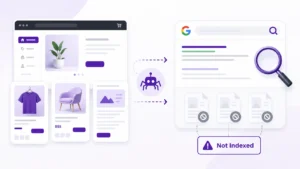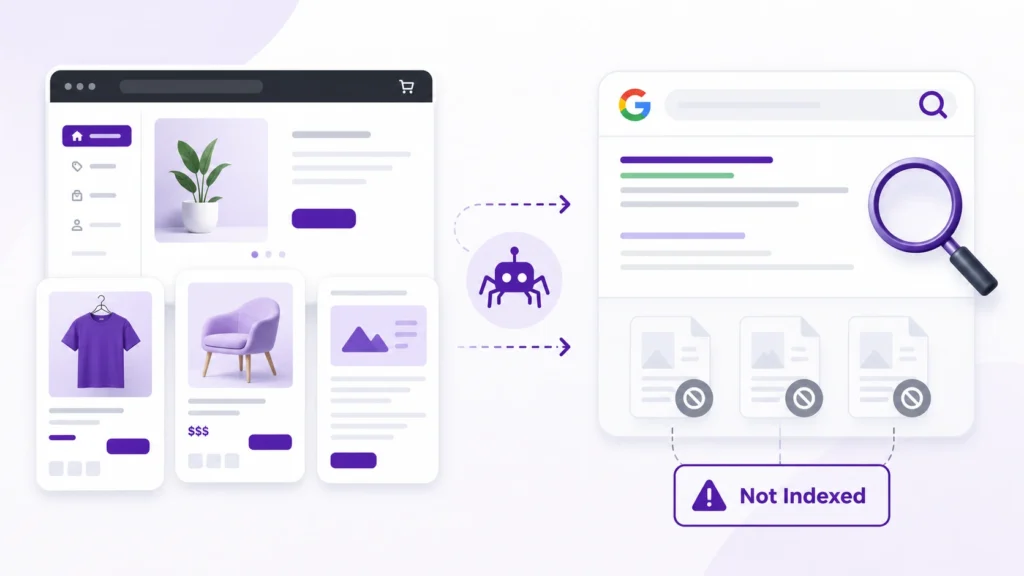
Published does not always mean indexed.
You can create a Shopify page, publish it successfully, and still find that Google does not show it in search results. This does not necessarily mean Shopify is broken or that you need to submit the URL repeatedly.
Google may not index a Shopify page because it has not discovered the URL yet, the page is blocked from indexing, another URL has been selected as canonical, the content is too similar to another page, or Google simply has not decided to include it in its index yet.
The fastest way to find the reason is to inspect the individual URL in Google Search Console instead of relying only on a site: search.
This guide explains what to check and how to fix the most common Shopify page indexing problems.
Why a Shopify Page Can Be Published but Not Indexed
There are three separate stages to keep in mind:
- Discovery: Google finds the URL.
- Crawling: Googlebot accesses and processes the page.
- Indexing: Google decides whether the page should be included in its search index.
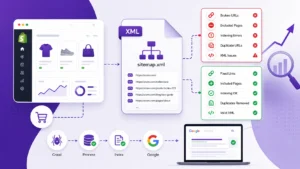
A sitemap can help Google discover Shopify URLs, but Google does not promise to crawl or index every URL listed in a sitemap.
Shopify automatically generates a sitemap.xml containing products, collections, pages, and blog posts. It is also automatically updated as your store changes.
So if a page is missing from Google, the sitemap is only one part of the investigation.
9 Reasons Your Shopify Pages Are Not Indexed
1. The Page Is Too New
If you recently created the page, Google may simply not have processed it yet.
Crawling and indexing can take time. Google states that it cannot guarantee when a particular URL will be crawled or indexed.
Before making technical changes, check whether Google has actually had an opportunity to discover and process the page.
2. The Page Has a noindex Directive
A noindex directive explicitly tells Google not to include a page in search results.
Google explains that a noindex rule can be implemented through a robots meta tag or an HTTP response header.
For example:
<meta name="robots" content="noindex">Shopify also provides methods for hiding specific pages, products, blog posts, and other resources from search engines. A custom seo.hidden metafield can also be used for eligible Shopify resources.
If the page is supposed to rank in Google, check that you have not accidentally added a noindex rule through your theme, an app, custom code, or a metafield.
3. Google Has Not Discovered the URL
A page can be perfectly crawlable but still take time to be discovered.
This is where internal links and the Shopify sitemap can help.
Shopify automatically generates its sitemap, while Google recommends making important pages reachable through links on your site.
For important pages, check whether they are linked naturally from:
- Relevant navigation
- Collection pages
- Blog content
- Related Shopify pages
- Other useful sections of your store
Avoid adding links just for the sake of Google. The link should also make sense for visitors.
For more guidance on improving your Shopify site’s technical foundation, see the Shopify technical SEO checklist.
4. The URL Is Blocked by Robots.txt
Robots.txt controls which URLs crawlers are instructed to request.
Shopify provides a default robots.txt configuration designed for most stores. It intentionally blocks certain areas that generally do not need to be crawled, such as checkout, cart, and some filtered URLs.
The important point is not to assume that every robots.txt rule is a problem.
If a normal page that you want indexed is accidentally blocked, however, it needs investigation.
Also remember that robots.txt and noindex are not interchangeable. Google says that if a URL is blocked by robots.txt, Google may not be able to see a noindex directive on that page.
Do not edit Shopify’s robots.txt blindly. Shopify warns that incorrect customization can cause SEO problems.
5. Google Selected a Different Canonical URL
Canonicalization is one of the most common reasons a page may not appear as the URL you expect.
When Google finds multiple pages that are duplicates or substantially similar, it groups them and selects a canonical URL to represent the group.
For example, you may have several URLs that Google considers substantially similar. You may want one URL indexed, while Google selects another.
Shopify automatically adds canonical tags to help with duplicate URL situations, but Google’s chosen canonical can still differ from your preferred URL.
Check the URL Inspection report in Google Search Console to see:
- User-declared canonical
- Google-selected canonical
- Indexing status
- Crawl information
If Google selected another canonical, determine why before simply requesting indexing again.
For Shopify-specific canonical issues, see the Shopify canonical URL guide.
6. The Page Contains Duplicate or Very Similar Content
Not every published URL deserves its own search result.
If two Shopify pages contain substantially similar content, Google may cluster them and choose one canonical URL.
Google explains that canonicalization is designed to consolidate duplicate or similar pages and identify the representative URL for search.
This can happen when you create:
- Very similar landing pages
- Near-identical Shopify pages
- Duplicate content across URLs
- Multiple versions of substantially the same information
Instead of trying to force every similar URL into Google’s index, decide which page should actually serve the search intent.
If the pages genuinely need to remain separate, make their purpose and content meaningfully different.
You can also review the Shopify duplicate content guide for related issues.
7. The Page Has Weak Internal Links
A page that is technically accessible but poorly connected to the rest of your website can be harder for search engines to discover and understand.
Consider whether the page is linked from relevant content.
For example, a useful Shopify informational page could be linked from:
- A related blog post
- A collection of supporting guides
- A relevant navigation section
- Another page discussing the same topic
Use descriptive anchor text that tells visitors what they will find.
For broader guidance, see the Shopify internal linking guide.
8. Your Store or Page Is Not Accessible to Google
Google needs to be able to access the page before it can properly process it.
Check for issues such as:
- The store being private
- Access restrictions
- Unexpected redirects
- Server errors
- Broken URLs
- Incorrect robots directives
- Theme or app changes affecting the page
Shopify notes that a sitemap cannot be accessed by search engines when the website is in private mode.
If your entire store has indexing problems rather than just one page, investigate the site’s broader accessibility and Search Console status.
9. Google Crawled the Page but Has Not Indexed It
This is where many Shopify owners get confused.
A page can be crawled without appearing in Google’s index.
Google does not automatically index every URL it encounters. Indexing decisions depend on Google’s systems and signals, and there is no guarantee that submitting or requesting a URL will result in inclusion.
If the page is technically accessible and indexable, review its actual value before repeatedly requesting indexing.
Ask:
- Does the page provide useful information?
- Is the content substantially different from other pages?
- Does it satisfy a clear search intent?
- Is it internally linked?
- Is the canonical URL correct?
- Does the page have enough useful content to deserve its own search result?
Technical fixes cannot compensate for a page that does not provide a clear reason to exist.


How to Check Why a Shopify Page Is Not Indexed
The most useful starting point is Google Search Console.
Step 1: Open URL Inspection
Enter the complete Shopify page URL into Google’s URL Inspection tool.
This tells you whether Google knows about the URL and provides information about its current indexing state.
Step 2: Check the Indexing Status
Look for the reported status and read the explanation provided by Search Console.
Pay particular attention to whether the URL is:
- Indexed
- Not indexed
- Crawled but not indexed
- Discovered but not indexed
- Excluded for another reason
The exact status matters because each situation requires a different response.
Step 3: Check the Canonical
Compare:
- User-declared canonical
- Google-selected canonical
If Google has selected another URL, investigate the duplicate or canonical relationship before requesting indexing.
Step 4: Check Crawling and Page Access
Confirm that Google can access the URL and that there are no unintended robots.txt or access restrictions.
Step 5: Inspect the Actual Page
Do not troubleshoot the URL only from Search Console.
Open the page yourself and check:
- Content
- Links
- Page title
- URL
- Canonical
- Visibility
- Redirects
- Page functionality
How to Fix Shopify Pages That Are Not Indexed
Use this order rather than changing everything at once.
1. Confirm the page should be indexed
Not every Shopify URL needs to appear in Google.
If the page is useful only for customers, contains duplicate content, or exists for a technical purpose, indexing may not be necessary.
2. Remove accidental noindex directives
If the page should appear in Google, check your theme, apps, metafields, and custom code for an unintended noindex rule.
3. Check robots.txt
Make sure the page is not unintentionally blocked from crawling.
Do not remove Shopify’s default rules simply because you see disallowed URLs. Many of those rules are intentional.
4. Check the canonical URL
Make sure the canonical relationship reflects the page you actually want Google to treat as the representative version.
Google treats canonical signals as hints rather than absolute commands and can choose a different canonical when its systems determine another URL is more appropriate.
5. Improve duplicate or thin content
If the page overlaps heavily with another URL, determine whether the pages should be consolidated or differentiated.
Do not create multiple pages simply to target slightly different keyword variations.
6. Add useful internal links
Link to the page from relevant content where doing so helps visitors navigate your site.
7. Confirm the sitemap
Shopify automatically generates and updates its sitemap. You can submit sitemap.xml through Google Search Console to help Google discover your store’s URLs.
A sitemap is helpful for discovery, but it is not an indexing guarantee.
8. Request indexing after fixing the issue
Once you have corrected a genuine technical or content problem, use URL Inspection to request indexing.
Google notes that requesting a crawl does not guarantee inclusion in search results, and repeated requests will not make a URL crawl faster.
What to Check in Shopify Before Requesting Indexing
Use this quick checklist:
| Check | What to look for |
|---|---|
| Page status | The page is published and accessible |
| Noindex | No accidental noindex directive |
| Robots.txt | Important page is not unintentionally blocked |
| Canonical | Correct preferred URL |
| Content | Useful and sufficiently distinct |
| Internal links | Page is linked from relevant content |
| Sitemap | URL is appropriately discoverable |
| Redirects | No unexpected redirect |
| Search Console | URL Inspection shows the actual issue |
| Page purpose | The URL genuinely deserves to appear in search |
✨ More Stories for You
When You Should Not Request Indexing
Submitting the same URL repeatedly is not a substitute for fixing the underlying problem.
Do not rush to request indexing when:
- The page is intentionally noindex
- Another URL is the correct canonical
- The content is substantially duplicated
- The page is not intended for organic search
- You have not fixed a known technical problem
- The page was only published moments ago
First determine why Google has not indexed it.
Then fix the relevant issue.
Then request another crawl if appropriate.
Shopify Pages Not Indexed: Quick Troubleshooting Flow
When a page is missing from Google, work through this sequence:
Page published?
↓
Can Google access it?
↓
Is it blocked by robots.txt?
↓
Does it contain noindex?
↓
Is the canonical correct?
↓
Is the content substantially different from competing or duplicate URLs?
↓
Can Google discover the page through internal links or the sitemap?
↓
Inspect the URL in Search Console
↓
Fix the issue
↓
Request indexing if appropriate
This is more reliable than repeatedly resubmitting a URL without understanding its indexing status.
Frequently Asked Questions
How long does Google take to index a Shopify page?
There is no guaranteed indexing timeframe. Google says crawling and indexing can take time and that it cannot guarantee when a particular URL will be crawled or indexed.
Does submitting Shopify’s sitemap guarantee indexing?
No. A sitemap helps Google discover URLs, but Google does not guarantee that every URL in a sitemap will be crawled or indexed.
Can robots.txt prevent a Shopify page from being indexed?
Robots.txt controls crawling rather than acting as a general indexing control. Google can sometimes know about a blocked URL through other discovery methods, which is why robots.txt should not be treated as an indexing removal mechanism.
Does noindex remove a Shopify page from Google?
Yes, when Google can crawl the page and see the noindex directive, it can exclude that page from search results.
Why does Google choose a different canonical URL?
Google may select another URL when it considers another page a better representative of a group of duplicate or substantially similar pages. A declared canonical is a strong signal, but it is still a signal rather than an absolute rule.
Should I request indexing every time I publish a Shopify page?
Not necessarily. Shopify automatically generates and updates its sitemap, and Google can discover URLs through sitemaps and internal links. Use URL Inspection and a manual indexing request when you have a specific reason to ask Google to recrawl an important URL.
Final Takeaway
When a Shopify page is not indexed, do not assume the solution is simply “submit the URL again.”
Start with Google Search Console and identify whether the problem is:
- Discovery
- Crawling
- Noindex
- Robots.txt
- Canonicalization
- Duplicate content
- Internal linking
- Accessibility
- Or Google’s decision not to index the page yet
Once you know the cause, the fix becomes much more straightforward.
The goal is not to get every Shopify URL into Google’s index. The goal is to make sure the important pages that deserve organic visibility are accessible, discoverable, technically indexable, unique enough to stand on their own, and useful to searchers.