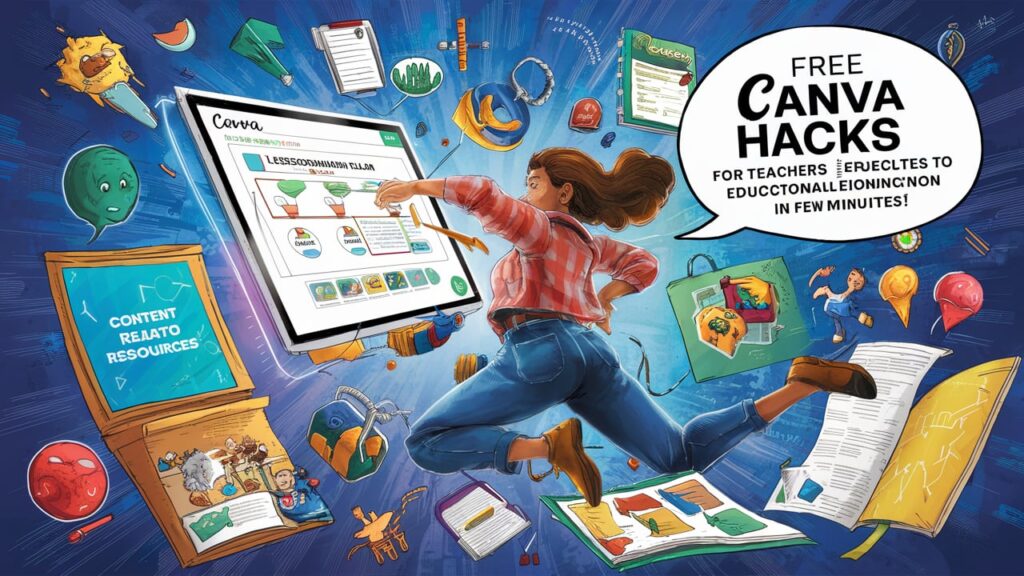
Teachers already juggle lesson planning, grading, meetings, and student engagement. Designing attractive educational content should not feel like another full-time job. This is where Canva quietly becomes a teacher’s best digital assistant.
Canva is not just a design tool. When used smartly, it becomes a time-saving teaching companion that helps you create worksheets, presentations, posters, quizzes, certificates, and even videos – often in just a few minutes.
This guide focuses on free Canva hacks for teachers only. No fake shortcuts. No unrealistic claims. Everything here is practical, tested, and aligned with how real educators work.
We will cover:
- Smart Canva features most teachers overlook
- Free tools that reduce prep time
- Design shortcuts that still look professional
- Classroom-ready examples
- Trusted sources used by educators worldwide
Let’s turn “I don’t have time” into “Done already.” 😄
Why Teachers Love Canva (And Why Google Loves It Too)
Before jumping into hacks, it’s important to understand why Canva fits perfectly into modern education.
Canva Is Built for Non-Designers
You do not need graphic design skills. Canva’s drag-and-drop interface works even if your design experience is limited to writing on a whiteboard.
Canva Supports Visual Learning
According to Edutopia, visual aids improve comprehension and retention for students of all ages. Canva’s templates naturally support visual learning without overwhelming students.
Canva Aligns with Digital Education Trends
Educational boards, online learning platforms, and hybrid classrooms now expect:
- Visual clarity
- Structured layouts
- Digital-first content
Canva meets all three.
Canva Free vs Canva for Education (Know the Difference)
Many teachers confuse Canva Free with Canva for Education. Let’s clear this first.
Canva Free
- Available to everyone
- Thousands of free templates
- Basic photos, icons, fonts
- Limited premium access
Canva for Education (Free for Eligible Teachers)
- All Pro features unlocked
- Millions of premium elements
- Classroom tools (assignments, collaboration)
- Cloud storage for teaching materials
Important: Canva for Education is free, but requires verification as an educator.
Source used: Canva official education documentation



Hack #1: Start with Education-Specific Templates (Not Blank Pages)
Why This Hack Works
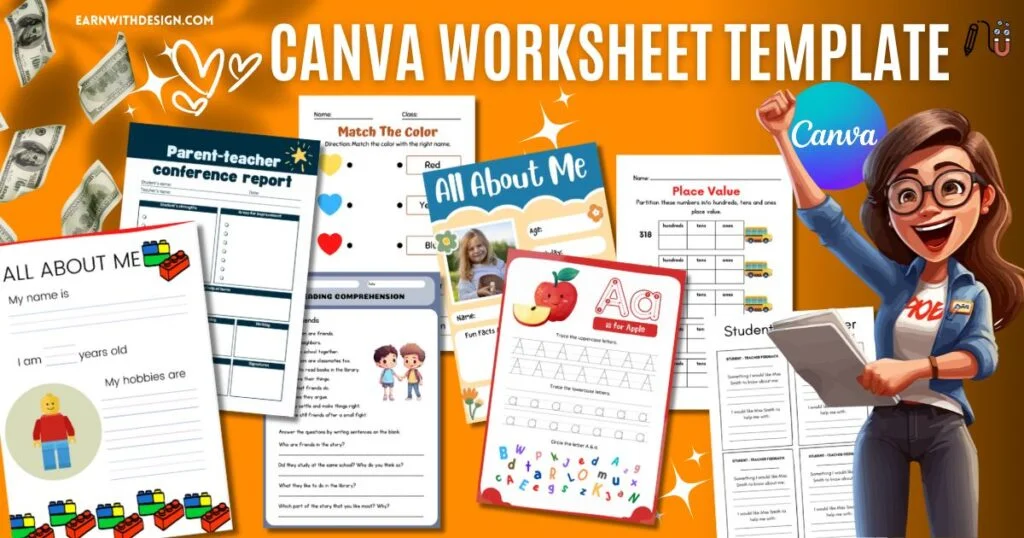
Starting from a blank page wastes time. Canva already offers education-focused templates designed with learning psychology in mind.
How Teachers Should Use This
- Search “Lesson Plan”, “Worksheet”, “Classroom Poster”
- Pick a clean layout
- Replace text and visuals only
You save structure-building time instantly.
Humor logic: Designing from scratch is like rewriting a textbook instead of reading one.
Hack #2: Use Brand Kits for Subject-Wise Consistency
What Is a Brand Kit (Free Version Trick)
Brand Kits are usually associated with businesses. Teachers can use the same idea:
- One color palette per subject
- One font pair for readability
- One layout style
Example
- Math: Blue + white
- Science: Green + grey
- English: Soft beige + black
Consistency helps students recognize subjects instantly.
Trusted insight: Consistent visual cues improve recall (Harvard Graduate School of Education).
Hack #3: Lock Background Elements to Avoid Design Mistakes
The Problem Teachers Face
You adjust text and suddenly the whole page moves. Frustration begins.
The Solution
Use Lock:
- Select background or frame
- Click “Lock”
- Edit text freely
This tiny hack saves minutes on every design.

Hack #4: Use Canva’s Magic Resize (Free Workaround)
Magic Resize is a Pro feature – but there is a free workaround.
Free Method
- Duplicate the design
- Change canvas size manually
- Adjust elements slightly
This works perfectly for:
- Worksheet → Assignment PDF
- Presentation → Poster
- Classroom slide → WhatsApp image
Hack #5: Turn Presentations into Worksheets Instantly
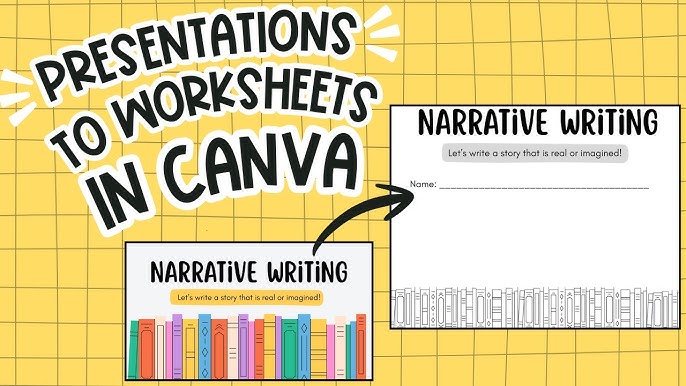
Why This Is Powerful
You teach once, then reuse the same content as:
- Homework
- Practice sheets
- Revision material
Steps
- Duplicate slide
- Remove animations
- Add questions below content
- Export as PDF
This saves preparation time every week.
Hack #6: Use Icons Instead of Images for Faster Understanding
Photos look good. Icons teach faster.
Why Icons Work Better
- Less visual noise
- Faster scanning
- Universal meaning
Search terms inside Canva:
- “Education icons”
- “Checklist”
- “Arrow”
- “Book symbol”
Source reference: Nielsen Norman Group (UX & readability research)
Hack #7: Smart Font Pairing for Readability
Best Free Fonts for Teachers in Canva
- Headings: Poppins, Montserrat
- Body text: Open Sans, Lato
Golden Rule
Never use more than two fonts in one design.
Students read better when fonts stay predictable.
Hack #8: Use Canva Whiteboard for Interactive Teaching
Canva Whiteboard works like a digital blackboard.
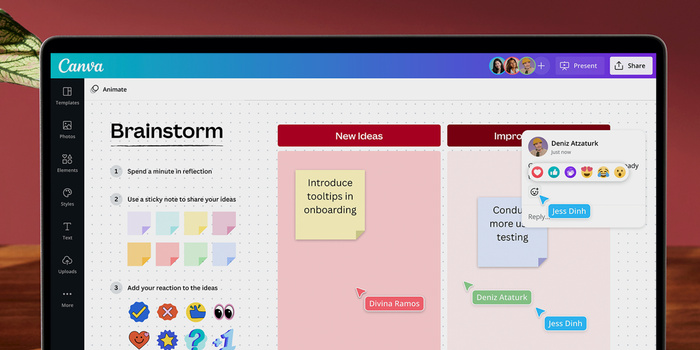
Classroom Uses
- Brainstorming
- Group activities
- Concept mapping
- Live explanations
It works smoothly with online and hybrid classes.
Hack #9: Create Certificates in Under 3 Minutes
Why Certificates Matter
Recognition boosts motivation. Even adults love certificates – students are no different.
Canva Certificate Trick
- Search “Certificate”
- Edit student name only
- Duplicate for entire class
You look organized without extra effort.
Hack #10: Record Lessons Using Canva Video (Free Feature)
Teachers often think video creation needs expensive tools. Canva proves otherwise.
What You Can Do
- Screen + face recording
- Voice-over slides
- Short explainer videos
Perfect for:
- Absent students
- Revision content
- Online classes
Source used: Canva video feature documentation
Hack #11: Use Grids to Align Content Automatically
Alignment problems make content look unprofessional.
Simple Fix
- Use Grids
- Drop images or text blocks
- Canva aligns everything for you
Your content looks polished without design knowledge.
Hack #12: Use Duplicate Pages Instead of Redesigning
One page. Many variations.
Example
- Same worksheet
- Change only questions
- Duplicate page
This maintains consistency and saves time.
Hack #13: Export Correct File Types (Avoid Common Mistakes)
Best Export Options
- Worksheets: PDF (Print)
- Online sharing: PDF (Standard)
- Videos: MP4
- Presentations: PPTX
Choosing the wrong format causes formatting issues.
Hack #14: Collaborate with Students Safely
Canva allows controlled collaboration.
Use Cases
- Group projects
- Design assignments
- Visual homework
Teachers control access and edits.
Hack #15: Use Canva Content Planner for School Events
Yes, even teachers manage announcements.
Use It For
- Exam notices
- Holiday posters
- Parent communication
Everything stays organized.
Common Canva Mistakes Teachers Should Avoid
Overdesigning Content
Education needs clarity, not decoration.
Using Too Many Colors
Stick to 2–3 colors.
Ignoring Font Size
Small text fails both print and screen reading.
Is Canva Safe for Teachers and Students?
Yes.
- GDPR-compliant
- Used by schools globally
- Trusted by educational institutions
Sources referenced:
- Canva Education Trust Center
- Common Sense Education reviews
Time Comparison: Traditional vs Canva Method
| Task | Traditional Time | Canva Time |
|---|---|---|
| Worksheet design | 45 minutes | 10 minutes |
| Presentation | 1 hour | 15 minutes |
| Certificate | 30 minutes | 3 minutes |
Logic speaks louder than marketing.
How Teachers Can Build a Personal Content Library in Canva
Smart System
- Folder per subject
- Folder per grade
- Reuse designs yearly
Once built, Canva becomes your teaching archive.
Final Thoughts: Teach Smart, Not Hard
Canva does not replace teaching skills. It supports them.
When teachers save time on design:
- They focus more on students
- They reduce burnout
- They deliver better learning experiences
These free Canva hacks for teachers work because they respect real classroom needs – not marketing hype.
If teaching already takes heart and patience, design should take only minutes. ⏰